MegaRid: accessibility
News Update
Loading...
Tampilkan postingan dengan label accessibility. Tampilkan semua postingan

Jumat, 23 September 2016

New in iOS 10: Magnifier

Magnifier captured an image of a keyboard and user applied yellow/blue high contrast mode 15x magnified keyboard key using Magnifier

Apple's newly released mobile operating system includes a new accessibility feature called Magnifier. The feature uses the device's built-in camera to enlarge objects placed in front of the camera. This can be helpful for people with visual disabilities who need to read small print. The feature can be enabled by navigating to Settings > General > Accessibility > Magnifier. Once enabled, Magnifier can be accessed by triple clicking the home button.

Magnifier's interface looks very similar to the camera apps interface with a few notable changes. One change is that Magnifier has a freeze frame button rather than a shutter button. Pressing this button freezes the image instead of taking a picture. Magnifier also has a zoom slider that is large and always visible on screen. The zoom slider allows users to zoom in further than is possible with the camera app. Magnifier allows users to zoom in up to 15x compared to 5x with the camera app (iPhone 7 Plus has optical zoom). However, the further a user zooms in the more pixelated the image will become. Magnifier also includes several high contrast options that can be applied before or after a freeze frame is captured.

Magnifier has several advantages over taking a picture with the camera app and then enlarging the image from the camera roll. The first advantage is that freeze frames are captured in full resolution. This means that users can zoom out after the freeze frame is capture. In the camera app, once a picture is captured using zoom there is no way to zoom out again. Another advantage of Magnifier is the high contrast modes that are available. Lastly, opening Magnifier by triple clicking the home button means that it is faster to launch than third party magnification apps.

There is one feature that unfortunately is not included in Magnifier which is the ability to save freeze frames for viewing at a later time. For example, if a person uses Magnifier to read a conference agenda the person may need to take multiple freeze frames of the agenda through out the day because only the most recent freeze frame can be saved.

It also may be difficult for some people to capture crisp images with Magnifier. At 15x zoom, even the slightest shake can make the image blurry. I wish Apple had added a capture timer to Magnifier. This could help eliminate minor shaking that occurs when a user reaches for the freeze frame button.

Overall, I think Magnifier will be greatly appreciated by people with visual disabilities and older people who have trouble reading small print.

Selasa, 21 Juli 2015

Inspiration Maps Updated with iPhone Support and More

Inspiration Maps displayed on iPhone 6

Inspiration Maps iconThe mind mapping and outlining app Inspiration Maps, which was previously only available on the iPad, is now available on the iPhone as well. The app is a valuable tool to help students organize their ideas and start the writing process. Users can drag text boxes around the screen to easily produce webs of ideas. Inspiration Maps is particularly helpful when writing about complex topics that require a well planned and organized essay. Inspiration Maps can be also be helpful when beginning an essay to visualize the structure that the written piece will take.

With the larger screen iPhone 6 and iPhone 6 plus in makes sense to bring the app to the iPhone. If you are concerned about not having enough room to effectively use the app on your iPhone, a free version is available here.

The update also makes in easier to select multiple text boxes or images at the same time. Now users can press and hold on the screen in order to lasso a group of images.

The updated app is available for $10 is the App Store. Click here to download the app. Click read more below to view more screenshots of Inspiration Maps for iPhone.


graphic highlighting brainstorming

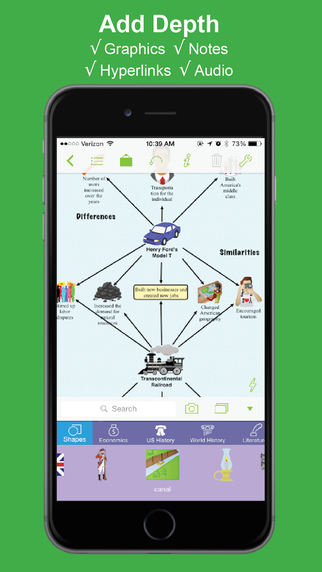
screenshot showing ability to add graphics, notes, hyperlinks, and audio

screenshot showing the ability to flip between web and outline view

Senin, 29 Desember 2014

Apple's New App Return Policy in Europe is a Big Deal for VoiceOver Users


Recently, Apple implemented a new 14 day no questions asked return policy in many European Union (EU) nations according to 9to5mac. The new policy allows customers to receive a full refund on App Store purchases within 14 days of receipt.

While this new policy is an important safeguard for all consumers, it is a major development for App Store customers who rely on accessibility features, such as VoiceOver, in order to use their devices. VoiceOver is a built in screen reader that allows blind and visually impaired users to use iOS devices and Macs.

While browsing the App Store, it is extremely difficult for VoiceOver users to determine if the app they are interested in purchasing is accessible. This often leaves the customer playing a guessing game with their money. For example, without the return policy a VoiceOver user who wanted to purchase a $20 app would need to hope that the app was accessible with VoiceOver otherwise their $20 purchase would be useless. Even if the app is inaccessible and unusable refunds are typically not granted.

The new policy allows VoiceOver users to download apps that may or may not be accessible without the risk of wasting money on an app that is totally useless for them. If the user downloads an app that is not accessible, they can simply return the app within two weeks and receive a full refund. In effect, this allows for a two week trial period for apps which will allow users to see if the app fits their needs. For VoiceOver users within the EU this will take the guesswork out of purchasing apps.

Unfortunately, the new return policy is only available in certain EU countries and is not applicable to customers in other countries. Hopefully, Apple will extend the policy to all customers regardless of which country they are in. Until that time, users in other countries will have to hope that the apps they are downloading are accessible.

Selasa, 23 Desember 2014

MotionSavvy's UNI Tablet: A Break Through in Sign Language Communication


For people who use sign language to communicate, interacting with people who do not know sign language can be an enormous challenge and create barriers for people who are hearing impaired. Until now, the best alternative might have been writing out notes on a piece of paper. However, an upcoming product from a company called MotionSavvy hopes to offer a better solution.

The solution does not look like the advanced piece of assistive technology that it is, but rather looks like a thin tablet with a Leap Motion device attached to the front. The Leap Motion senses the motion of the users hand to recognize signs using multiple cameras. Once the table recognizes the signs it can display the signed phrase as text on screen or even as spoken words with text-to-speech. This allows the other person that does not know sign language to understand what is being signed. Then the other person can speak into the tablet and speech recognition technology will allow the words to appear on the screen for the hearing impaired person to read.

This technology can allow deaf and hearing impaired users to communicate with other people that do not know sign language without an interpreter or slow hand written messages. However there are some limitations that should be expected from a first generation product such as the UNI. Users will not be able to use their existing tablet with the software and will need to purchase both the Leap Motion device and accompanying Windows tablet and case through MotionSavvy. Also, the system may have difficulty interpreting the nuances of different sign language styles. Additionally only American Sign Language (ASL) will be supported initially. Luckily, MotionSavvy will include a feature to allow people to teach the device how to recognize new signs. With a feature called CrowdSign, the signs imported by one user can be shared with other users of the system. This will allow the library of recognizable signs to increase quickly provided users are willing to create and share their imported signs. However, because of the upkeep needed to maintain the CrowdSign features, users will need to pay a monthly fee to use the UNI tablet.

The MotionSavvy UNI tablet is expected to be released in early 2015. At this time, details on pricing are unclear, but MotionSavvy has said that the UNI will sell for more than $500 when released.

Sabtu, 06 September 2014

What a Larger Screen iPhone Means for Accessibility


The general consensus is that Apple will introduce new iPhones with larger screens in a few days. With many people with disabilities using Apple's flagship device for their accessibility needs a change can have a large impact on users. From a software prospective iOS 8 will offer many accessibility improvements, but hardware is also an important aspect of accessibility. The larger screen will certainly benefit some users with special needs, but may also cause problems for others.

Users with low vision may benefit the most from the larger viewing area. On current iPhones, with large text enabled, only a small amount of text is able to fit on screen. A larger screen will allow more text to fit on screen requiring less scrolling for users who prefer or require large text. The large screen will also give VoiceOver users more space to use three or four finger gestures.


On the other hand a larger screen iPhone may pose a challenge. Users with physical challenges may have a difficult time reaching all the controls. Also users who prefer using their phone in one hand and users who can only use one hand to operate their phone may find it difficult access all areas of the screen. It is possible that Apple will come up with a software solution to these possible challenges, making one handed use a breeze. 

When Apple introduced the iPhone 5 it claimed that the larger screen was a perfect size for one handed, use so it will be interesting to see how the next iPhone is marketed.

People who use Apple devices as assistive devices should be excited about the company's upcoming announcement. Regardless of any hardware changes Apple's iOS 8 includes unmatched accessibility features for people with a variety of needs. The potentially larger screen size will likely benefit most users. The benefits and trade-offs of larger screen phones has been explored with Android phones for years, and hopefully Apple has been able to iron out any lasting challenges. Aside from the form factor, Apple may introduce new software or hardware features that impact people with disabilities at their event. Stay tuned for information about how Apple's announcements impact accessibility.

Senin, 11 Agustus 2014

Indoor Navigation System Will Soon Guide Blind Passengers at SFO


Imagine how difficult it would be to navigate a bustling airport terminal as a person with a visual impairment. Navigating security, finding baggage check, and finding the correct gate all while trying to make a last minute flight is daunting for even the most seasoned travelers. San Francisco International Airport (SFO) will soon implement a system to help guide blind and visually impaired travelers from curb to gate. Starting with Terminal 2 this fall, the airport will install some 500 iBeacons for a trial. Current solutions such as GPS do not work well indoors because they are unable to provide precise location information, but beacons allow more precise locationa. When a user with the indoor navigation app walks by a beacon it communicates with the user's smartphone and transmits the location. With the location information sent from the beacon, the app can then guide users to restrooms, restaurants, boarding gates, baggage claims, and even charging stations. Initially the app will only run on iOS devices, but Android devices will likely follow. The system runs off Bluetooth technology which should have minimal impact on battery life. For blind users, points of interest and navigation instructions are read aloud using VoiceOver.

If the trial in Terminal 2 is successful, it is likely that the program will expand to more terminals and more airports. This system, powered by a company called indoo.rs, is a promising development for indoor navigation. In the near future, it is conceivable that similar systems will help people with visual impairments navigate shopping malls, schools, or hospitals. The technology will also benefit sighted users who have trouble finding locations in the vast terminal. If your traveling through SFO Terminal 2 this fall give it a try.

Kamis, 17 Juli 2014

Too Much Background Noise when Recording Lectures with Smart Phone or Table Built-in Microphone? Check Out the Ampridge MightMic


Mobile devices are convenient tools that students use to record classes and lectures, reporters use to record news conferences, and business people use to record meetings. Some use note taking apps like Notability, Remarks, or Livescribe+ to augment their notes with audio recordings. The benefits of recording the audio can be minimized by poor quality recordings from built-in microphones.

Built-in microphones tend to do a poor job of isolating sounds which results in background noise that makes the desired sounds difficult to hear, especially for people with hearing impairments.

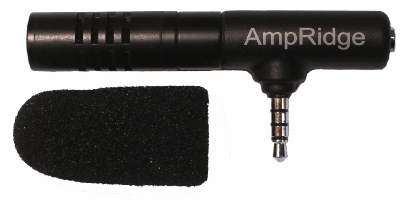
The AmpRidge MightyMic microphone plugs directly into the headphone jack of any smartphone, tablet, or computer that supports microphone input. It proves an alternative audio output jack so users can still plug in headphones while the microphone is plugged in. Its compact size makes it easy to use in class and makes in relatively discrete. The MightyMic microphone works well with an iPhone and is only slightly longer wider than the width of the phone. The microphone  even worked fine with my bulky iPhone case. Once plugged in you can angle the microphone towards the front of the room to capture the most important sounds. In my testing, the MightyMic microphone was on par with the built-in iPhone microphone for close range recording, but worked considerably better than the built-in microphone in a classroom or outdoor long range environment. The MightyMic microphone reduced background noise resulting in better sounding audio playback. If you frequently record classes, lectures, or meetings and are less than satisfied with your device's built-in microphone, the MightyMic mic is a good option to give your sound a boost. If you're looking for a big improvement in sound quality quality you may have to look towards more expensive options.

The Ampridge MightyMic retails for $70 on AmpRidge.com. Also included is a protective carrying pouch and foam protective cover.


Product was provide complimentary to reviewer for review


Jumat, 20 Juni 2014

Amazon Announces Fire Phone with Advanced Image Recognition and Built-in Accessibility

Courtesy: Amazon.com

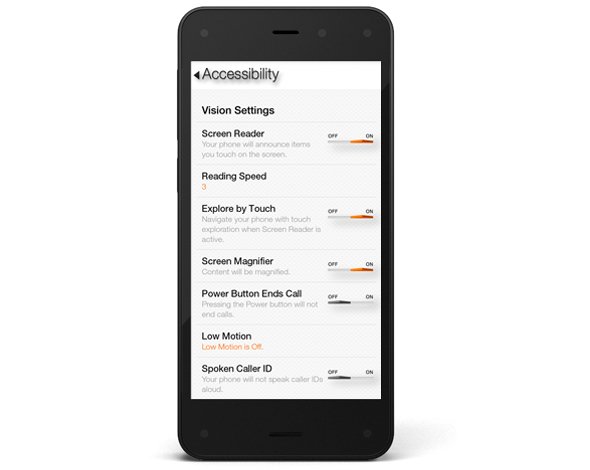
This week, Amazon announced there first smartphone called Fire Phone. The Fire Phone has a number of flashy, maybe even gimmicky, features along with a few features that may have serious accessibility implications. The phone which starts at $200 and starts shipping on July 25th runs Fire OS 3.5.0 similar to Amazon's Kindle Fire tablets. The operating system includes a number of built-in accessibility features including features to help blind, low vision, mobility impaired, and hearing impaired users. For blind and low vision users, the Fire Phone includes a screen reader which allows users to navigate the screen without seeing it. Assuming the Fire Phone uses the same text-to-speech voices as the Kindle Fire tablets, the text-to-speech voice used is very high quality. For low vision users, the Fire Phone includes a zoom mode and high contrast support. Closed captioning, mono audio, and hearing aid compatibility (HAC) are features included for users with hearing impairments.The Fire Phone also includes features for users with mobility challenges including dictation and improved one-handed usability. It is very encouraging to see Amazon include accessibility features in to their Fire Phone. Click here to read a full overview of all the Fire Phone's accessibility features. Amazon, once reluctant to support accessibility, has shown a new dedication to accessibility for users with disabilities. Hopefully, this continues in future updates to the Fire OS as well as to future products.

In addition to dedicated accessibility features, the Fire Phone has a couple of mainstream features that could be potentially beneficial to people with disabilities. The first of these features is called Mayday. Mayday is currently available on newer Kindle Fire tablets allows users to quickly connect and chat with technical support directly from their device. Simply by pressing the easy to access Mayday button users are atomically connected. Technical support staff can access certain device functions to assist users with a variety of questions. Support staff can even virtually draw on the screen to draw your attention to certain buttons. In my testing, I was able to connect with Mayday staff in under a minute and the staff was knowledgeable and friendly. The support personnel were even knowledgeable about accessibility features. This feature could be great for users with cognitive challenges who need assistance using certain features on their phone.

The second feature is called Firefly. By pressing a dedicated button on the side of the device and pointing the camera at an object the Fire Phone can identify that object. Amazon demonstrated this feature at their even and it worked very quickly. Firefly could be used by the blind to identify objects and differentiate objects of similar size and shape. For example, to identify if a can contains chicken soup or sliced peaches. Similar to iOS apps like TapTapSee, Firefly is Amazon's attempt to make buying merchandise through Amazon an easier process.

The Fire Phone seems promising, but it is impossible to determine its true value in terms of accessibility until it is released next month. Until then, click read more to view videos of the Fire Phone in action.


Kamis, 19 Juni 2014

Kindle App for iOS and Android Adds Whispersync for Voice


Amazon's Kindle app for iOS and Android was recently updated to integrate audio books from Audible. The update, which is available for free, allows users to seamlessly switch between reading the Kindle text version of a book to listening to the Audible audio version of a book. For example, if you read part of the book and then switch to the audio version the recording will pickup right where you left off. The new feature even allows users to listen to the audio book while following along with the text version. Audio speaking rate can be increased or decreased according to user preference. Unfortunately, unlike Immersion Reading on Kindle Fire tablets, the Kindle app for iOS and Android does not highlight the text as it is being read allowed. While this may not be an inconveniences for some users, it could be a major omission for users with tracking difficulty. For now, users will need a Kindle Fire tablet to take advantage of the full Immersion Reading experience. To learn more about Immersion Reading click here. There is one another major caveat: price. In order to take advantage of Whispersync for Voice or Immersion Reading on a Kindle Fire, you must purchases both the Kindle and Audible versions of a book. This can become extremely expensive for the occasional reader let alone a book worm.

To download the app for iOS click here and to download the app for Android click here. To view screenshots of the app in action click read more below.


Sabtu, 31 Mei 2014

Ginger Page for iPhone: Powerful Spelling and Grammar Correction


Ginger Software, the maker of the powerful spelling and contextual grammar checker "Ginger" has released an iPhone app called Ginger Page. Ginger's technology can correct mistakes that common spell checking software would not detect. Ginger does this by analyzing the context of the text being written. For example, if you are writing about drafting a school essay Ginger will suggest that you use "write" instead of "right." From my testing, Ginger also seems much better at suggesting and correcting punctuation than other editing software. Ginger Page can also read your writing back to you using text-to-speech, which can be a powerful proof reading tool, especially for those with dyslexia. Once you have completed your writing, you can share it by text message, email, or open it in another compatible app.

While the Ginger correction software is very good, the app has some notable omissions. Ginger Page is only available for iPhone which is perplexing for a writing focused app. The iPad's larger screen would make the writing experience much easier. Also, Ginger requires an internet connect to correct your writing. You can still type into the app without an internet connection, but no corrects will be offered. 

Since, Ginger Page is a free app its a no brainier to download it if you need extra spelling and grammar help. Click here to download Ginger Page. Watch the above video above to see Ginger Page in action and click read more below to view screenshots of the app.


Senin, 26 Mei 2014

Apple Begins Hosting Free Accessibility Workshops

Apple Begins Hosting Free Accessibility Workshops


Recently, select Apple Retail Stores have started hosting free accessibility workshops. The hour long sessions are instructed by Apple Store employees and cover various accessibility features included in iOS 7 and OS X Mavericks. Workshops are divided based on the user's needs and include hearing, vision, and physical and motor skills. These workshops will presumably cover features such as VoiceOver, Assistive Touch, Switch Control, and more.

These workshops are a great way for Apple customers to learn about helpful accessibility features that are already built into their devices. The workshops will also offer users of Apple's accessibility features an opportunity to get their questions answered in person. The training of the workshop instructors will be key to a successful experience. Hopefully, these workshops will be offered in all Apple Stores in the near future. While accessibility specific workshops may not help Apple's bottom line, they demonstrate Apple continued commitment to accessibility.

Click read more below to view descriptions of the available sessions.


Below are the workshops titles and descriptions reported by AccessiQ.org.
Hearing in iOS 7 and OS X Mavericks
Discover the many built-in accessibility features in iOS 7 and OS X Mavericks for people who are deaf or hard of hearing. From enjoying your favourite content with closed captioning to communicating in sign language with FaceTime, you’ll see how easy it is to get the most out of your iPad, iPhone or Mac.
Physical and Motor Skills with iOS 7 
Come and learn about the innovative technologies in iOS 7 that make the Multi-Touch screen easily accessible to people who find it hard to tap or use gestures. We’ll show you features and shortcuts that let you do everything from control the device with your voice to adapt the screen controls to your unique needs.  
Physical and Motor Skills with OS X Mavericks
Let us show you the many ways OS X technologies can help you navigate the Mac if you have difficulty using a keyboard, mouse or trackpad. You’ll learn how to navigate using switches with Switch Control and make keyboard and mouse gestures easier with features like Slow Keys, Sticky Keys and Mouse Keys, and even see how to control the computer with your voice.
 Vision with iOS 7
In this workshop, you’ll learn about the accessibility features in iOS 7 that help people who are blind or have low vision use iPad, iPhone and iPod touch. Find out how VoiceOver — a revolutionary advanced screen reader — and features like Siri and Dictation help you type, launch apps, send messages, read your calendar and so much more. 
Vision with OS X Mavericks 
This workshop will introduce you to the assistive technologies in OS X Mavericks that help people who are blind or have low vision use the Mac. You’ll discover VoiceOver, an advanced screen reader that converts text to speech, and Dictation, which converts your speech to text, as well as other great features like screen magnification and high-contrast settings.

Kamis, 08 Mei 2014

Google's Project Ara Smartphone has Tremendous Accessibility Potential


Google's futuristic modular smart phone has the potential to dramatically change how we think of electronics. The still unreleased phone call Project Ara has a interior metal structure with slots for different components to connect. For example, modular components could house a camera, battery, touch screen display, or speaker. These components snap into place making a relatively standard looking smartphone. Consumers could purchase components and assemble them to make a personalized smartphone. The phone allows consumers to exchange a component for extra battery power or a more powerful camera depending on the situation.

With such customizable hardware, the Ara phone could adapt to fit the needs of people with various disabilities. If users have a hearing impairment they could add a louder speaker component. Conversely, if a user is deaf there is no need to waste space with a speaker when the space could be used for something more useful. The possibilities are almost limitless. A blind user could possibly opt not to have a touch screen display in favor of a refreshable Braille display. Users with dexterity challenges could add a tactile keyboard.

While Project Ara sounds promising for people with disabilities, the implementation is key. Will third party hardware developers make specialized components for people with disabilities at an affordable price? Can Google successfully configure Android to work properly with any assistive add ons third parties make?  Project Ara phones won't be available for for many months, but the project offers some exciting possibilities.


Click read more below to learn more about Project Ara.


Kamis, 17 April 2014

EU Regulation Requiring Hybrid and Electric Cars to Make Artificial Noise Will Improve Safety for Blind Pedestrians

EU Regulation Requiring Hybrid and Electric Cars to Make Artificial Noise Will Improve Safety for Blind Pedestrians


Hybrid and electric cars pose a major safety challenge for pedestrians. The cars, which use electric motors, make very little noise, making them almost impossible for blind pedestrians to detect. Electric cars are gaining in popularity due to their energy savings and improving affordability. In response to the increased threat quite electric cars are posing, the European Union (EU) is preparing to mandate electric and hybrid cars have noise alerts for pedestrians. By 2019 cars sold in the EU will be required to include audio alerts. While the implementation of the rule is still four years off the importance is sure to only grow as electric cars become more and more popular.

America has yet to require audio alerts for electric cars, but legislation has been proposed. Hopefully, the EU's changes will spur electric car makers to add audio alerts to their cars and improve the safety for pedestrians everywhere. As seen in the above video some cars such as Nissan's electric car already offers pedestrian alerts.

Minggu, 13 April 2014

Learning Ally Audio Update Includes Background Audio Support


Learning Ally, a provider of audio books for the blind and dyslexic, recently updated their iOS app. The free apps allows Learning Ally members to listen to their audio books while on the go. The new update brings a valuable  new feature to the app. Now, the app allows users to listen to their audio books while using other apps at the same time, a feature commonly called background audio. The update provides a more consistent experience for users who have come to expect background audio support in all apps. With the update users can listen to an audio book while looking up information on the internet, reading a note page, or even responding to an occasional text message. Along with background audio support comes the ability to control playback using control center or a headphones with a remote. The update is available for free and is compatible with iPhone, iPad, and iPod Touch. To take advantage of the app users must be members of Learning Ally. To learn more about Learning Ally click here.

Kamis, 03 April 2014

Apple Announces WWDC 2014: Will Accessibility Enhancements Take Center Stage Once Again?

Apple Announces WWDC 2014: Will Accessibility Enhancements Take Center Stage Once Again?

picture of colorful Apple logo made from varying sized rounded squares

Apple announced that their World Wide Developers Conference (WWDC) will take place from June 2nd - 6th in San Francisco, California. At the event, Apple will preview the future versions of iOS and OS X. It is unknown what these changes will entail, but if history is any indication Apple will preview iOS 8 and OS X 10.10. Consistently, over the past few years Apple has steadily improved the accessibility features of both iOS, which runs the iPhone, iPad, and iPod Touch and OS X, which runs on Mac computers. Last year with OS X 10.9 Mavericks, Apple added Switch Control, large text, VoiceOver enhancements, customizable closed captioning, and enhanced dictation. iOS 7 added Switch Control, improved Siri, and ability for developers to utilize system text-to-speech voices.

At WWDC 2012, Apple devoted precious time during their Keynote to detail improved accessibility features found in iOS 6. With millions of users any accessibility improvements can have a dramatic impact on many users. Hopefully, Apple can continue to improve their current accessibility options while continuing to insure that any possible future devices are also accessible to people with all abilities. For attendees, the venue is fully ADA compliant.

Stay tuned to the Assistive Technology Blog to learn all about how the WWDC 2014 announcements impact accessibility.

Sabtu, 15 Maret 2014

Voice Dream Reader Updated to Version 3.0: Read PDFs in Original Layout and More


Voice Dream Reader is an app for iPhone, iPad, and iPod Touch that supports people who prefer reading in different ways. Voice Dream can read documents from a number of sources with multiple high quality text-to-speech voices. Users can import PDFs, Word documents, text files, webpages, and even Bookshare books into the app. Once the text is loaded into the app you can listen to it using text-to-speech, highlight the text, search for a specific words or phrases, and get definitions for unknown words. Among many other uses, Voice Dream Reader is a terrific Bookshare book reader for students. Voice Dream also works very well with VoiceOver. Now, with newly released Voice Dream Reader version 3.0, new features have been added that makes the app even more useful.

Up until yesterday evening, Voice Dream only supported text. All images and formatting associated with a file were stripped away. With version 3.0 images and formatting within PDF files are retained. Now you can read a PDF in its original layout. Voice Dream still highlights each word as it is read aloud. It is easy to switch between layout view and text view depending on your preferences. Version 3.0 also includes more customization options. Users now have more control over the colors of the highlighting and spacing of the text. An improved web browser has been added that makes adding text from the web quicker and easier. New Ivona text-to-speech voices are also available for purchase in version 3.0.

With large PDF files page loading is slightly slow, but this problem only occur with very large files and does not effect text view performance.

In future updates image support maybe added for Bookshare books or other document types. I also hope iCloud sync will be added in a future update. At school I read my books on my iPhone and make new annotations, but when I get home and start reading on my iPad the annotations are stuck on the iPhone and I must search for the page that I left off on. iCloud sync would make this process much more seamless.

Voice Dream Reader is a must have app for iOS users with print disabilities or anyone who could benefit from reading with text-to-speech. Voice Dream Reader's well developed features make loading, reading, and annotating text easy. Knowing that the app has a developer that is open to feedback and actively developing new features is an added benefit. Voice Dream Reader costs $9.99 on the App Store. Click here to download the app. There is also a lite version of Voice Dream Reader that allows you to try it before you buy.

Click read more to view screenshots of Voice Dream Reader.


Sabtu, 08 Maret 2014

Any Developer Can Now Integrate Fleksy's Accessible Keyboard Into Their iOS App


Fleksy is an alternative keyboard for mobile devices including smartphones, tablets, and even smart watches. Fleksy uses predictive software that will guess which word you meant to type even if you mistype every letter. As long as your close to the right letters Fleksy will be able to correctly guess which word you meant to type. This means you don't even have to look at the keyboard. If Fleksy does make a mistake you can easily swipe through alternative suggestions.

Currently, Apple does not officially support third party keyboards to replace the default keyboard on iOS, but developers can get around this limitation by building an alternative keyboard into their app. Today, Fleksy made it easy for developers to built the Fleksy keyboard into their app. The Fleksy keyboard is now available for any iOS developer who wants to include it in their app. This announcement is very exciting because if developers get on board it will give iOS users the choice of which keyboard to use.

Having Fleksy integrated in apps is also a positive for blind and visually users. Fleksy works well with VoiceOver and because Fleksy is so good at predicting which word you are trying to type being able to see the keyboard is not as important. The Fleksy keyboard is much quicker and easier to type on then the default iOS keyboard especially for VoiceOver users.

Unlike Android were you can download Fleksy and use it will all of you favorite apps, each iOS developer will have to build in support for the keyboard. Hopefully, now that Fleksy is available for all iOS developer Fleksy will become ubiquitous on iOS. If you would like to see Fleksy integrated into one of your favorite apps you could contact the developer and ask for Fleksy integration.

To try out Fleksy download the app for iOS or Android. Fleksy is currently available in select apps such as Launch Center Pro. Click read more below to view images and videos of Fleksy.


iPhone Screenshot 2

iPhone Screenshot 3


Minggu, 23 Februari 2014

Launch Center Pro: Speed Up Common Actions on iOS Devices


blue icon with rocket ship in the middleLaunch Center Pro is an app for iPhone, iPad, and iPod Touch that allows users to launch apps and simple tasks directly from the app. Instead of launching Safari, navigating to the search site, and typing in your search, for instance, Launch Center Pro lets you directly search Google or Wikipedia; Launch Center Pro also can be configured  by users to set up group email, instead of having to type in the email address of each recipient.

Launch Center Pro uses a simple interface to make it easy to simplify some of your common actions and launch them quickly. I frequently text my sister "where are you?" Instead of launching the Messages app, finding my sister's contact, and then typing the message, I created a Launch Center Pro action that sends a text to my sister saying, "where are you?" Now, when I want to text my sister, I just touch the icon for this action and a text saying "where are you?" is on its way to my sister.
,
Creating actions is easy with the built in action composer which gives users the ability to pick pre-made actions for apps they already have installed on their device. The action composer also allows users to customize the icon of the action to make it easier to find.

Launch Center Pro works with a number of apps, but support for more useful actions among third party apps is hit or miss. Some apps such as Prizmo integrate very well with the app allowing you to easily launch actions, but other apps such as Nike+ Running can be opened, but not further interacted with. It would be nice to be able to start a new run in Nike+ via Launch Center, but actions like that requires the developer to build special support for Launch Center Pro into their apps. Click here to view a list of the apps currently supporting Launch Center Pro.

I see Launch Center Pro as a great app for first time iOS users, and other individuals who struggle performing sequential functions. Launch Center Pro can make it easier for first time iOS users learn to use their devices. Instead of learning how to search Google, Wikipedia, Yelp, and Google Maps individually a simple search menu could be made with quick links to search all those services. In terms of accessibility for the blind and visually impaired, Launch Center Pro works well with VoiceOver and supports the Fleksy keyboard which is accessible.

Launch Center Pro costs $4.99 for the iPhone version and $7.99 for the iPad version. Click here to view the app for iPhone and click here to view the app for iPad. Click read more below to view screen shots of Launch Center Pro in action.


App was provided complimentary to reviewer for review 
How To Use
  • Put the link on the
  • Generate Link box with http:// or https://
  • Use  CTRL + V  on keyboard to put the link.
  • Click Generate button to get encrypted link.
  • Click Copy URL button.
  • Done