MegaRid: iPad
News Update
Loading...
Tampilkan postingan dengan label iPad. Tampilkan semua postingan

Rabu, 17 September 2014

Apple Releases iOS 8 with Major Accessibility Improvements

Apple Releases iOS 8 with Major Accessibility Improvements


Today, Apple released iOS 8 the latest software update for iPhone, iPad, and iPod Touch. The new software, which is available for free, includes many new features and enhancements, including new accessibility features and tools that will allow developers to make the next generation of apps. Apple has not stood still in terms accessibility and as a result, iOS 8 is truly the most accessible and inclusive iOS version to date.

Some of the most exciting new accessibility features are included in iOS are ready to use right after updating. These features are developed by Apple, and most are found under Settings > General > Accessibility.

Speak Screen is one of the new accessibility features that allows users to quickly and easily have content on the screen read with text-to-speech with a simple two finger swipe down gesture. Unlike older versions of iOS which required users to highlight sections that they wished to be spoken, Speak Screen does not require any highlighting. Users can even ask Siri to “speak the screen” to start text-to-speech.

Apple’s highly acclaimed screen reader, VoiceOver, also received some substantial updates. Now, VoiceOver users can enter text using a system-wide virtual six-dot Braille keyboard. Zoom is also vastly improved with windowed magnification and filters. Guided Access and AssistiveTouch have seen smaller improvements.

In addition, all accessibility features that use speech will now be able to use the Alex text-to-speech voice that many Mac users enjoy. All of these features are included with the iOS 8 update. Stay tuned for in depth information about the features discussed above in the coming days and weeks.

With iOS 8, Apple has given developers tools to make the next generation of great apps. Hopefully, assistive app makers will be able to take advantage of these new features to help people with various needs. Developers can now make system wide keyboard apps. iOS keyboards will now be able to enter text into any app if the developer updates the app for iOS 8. For example, Fleksy and SwiftKey are expect to receive an update shortly to enable text entry into any app. Developers can also add the ability to unlock their app using Touch IDfinger print recognition for devices with Touch ID. Lastly, developers can create extensions to allow their app to perform functions within other apps. For example, a translation extension could be used within Safari to eliminate the need to switch apps.

These features open up a whole new world to app developers and it will be exciting to use some of the new apps that take advantage of these new developer features. While some apps have already been updated to take advantage of the new developer features in iOS, many have not been. Check back to read about some apps that are taking advantage of these new developer features in ways that can help people with disabilities.

iOS 8 is a free update that you can download now. Stay tuned to the Assistive Technology Blog to learn more about the new included accessibility features and about apps that take advantage of the new developer features.

Kamis, 17 Juli 2014

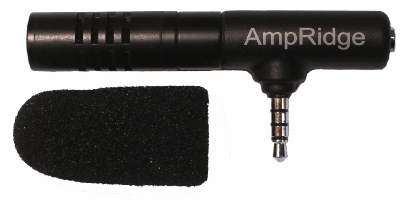
Too Much Background Noise when Recording Lectures with Smart Phone or Table Built-in Microphone? Check Out the Ampridge MightMic


Mobile devices are convenient tools that students use to record classes and lectures, reporters use to record news conferences, and business people use to record meetings. Some use note taking apps like Notability, Remarks, or Livescribe+ to augment their notes with audio recordings. The benefits of recording the audio can be minimized by poor quality recordings from built-in microphones.

Built-in microphones tend to do a poor job of isolating sounds which results in background noise that makes the desired sounds difficult to hear, especially for people with hearing impairments.

The AmpRidge MightyMic microphone plugs directly into the headphone jack of any smartphone, tablet, or computer that supports microphone input. It proves an alternative audio output jack so users can still plug in headphones while the microphone is plugged in. Its compact size makes it easy to use in class and makes in relatively discrete. The MightyMic microphone works well with an iPhone and is only slightly longer wider than the width of the phone. The microphone  even worked fine with my bulky iPhone case. Once plugged in you can angle the microphone towards the front of the room to capture the most important sounds. In my testing, the MightyMic microphone was on par with the built-in iPhone microphone for close range recording, but worked considerably better than the built-in microphone in a classroom or outdoor long range environment. The MightyMic microphone reduced background noise resulting in better sounding audio playback. If you frequently record classes, lectures, or meetings and are less than satisfied with your device's built-in microphone, the MightyMic mic is a good option to give your sound a boost. If you're looking for a big improvement in sound quality quality you may have to look towards more expensive options.

The Ampridge MightyMic retails for $70 on AmpRidge.com. Also included is a protective carrying pouch and foam protective cover.


Product was provide complimentary to reviewer for review


Minggu, 13 April 2014

Learning Ally Audio Update Includes Background Audio Support


Learning Ally, a provider of audio books for the blind and dyslexic, recently updated their iOS app. The free apps allows Learning Ally members to listen to their audio books while on the go. The new update brings a valuable  new feature to the app. Now, the app allows users to listen to their audio books while using other apps at the same time, a feature commonly called background audio. The update provides a more consistent experience for users who have come to expect background audio support in all apps. With the update users can listen to an audio book while looking up information on the internet, reading a note page, or even responding to an occasional text message. Along with background audio support comes the ability to control playback using control center or a headphones with a remote. The update is available for free and is compatible with iPhone, iPad, and iPod Touch. To take advantage of the app users must be members of Learning Ally. To learn more about Learning Ally click here.

Sabtu, 15 Maret 2014

Voice Dream Reader Updated to Version 3.0: Read PDFs in Original Layout and More


Voice Dream Reader is an app for iPhone, iPad, and iPod Touch that supports people who prefer reading in different ways. Voice Dream can read documents from a number of sources with multiple high quality text-to-speech voices. Users can import PDFs, Word documents, text files, webpages, and even Bookshare books into the app. Once the text is loaded into the app you can listen to it using text-to-speech, highlight the text, search for a specific words or phrases, and get definitions for unknown words. Among many other uses, Voice Dream Reader is a terrific Bookshare book reader for students. Voice Dream also works very well with VoiceOver. Now, with newly released Voice Dream Reader version 3.0, new features have been added that makes the app even more useful.

Up until yesterday evening, Voice Dream only supported text. All images and formatting associated with a file were stripped away. With version 3.0 images and formatting within PDF files are retained. Now you can read a PDF in its original layout. Voice Dream still highlights each word as it is read aloud. It is easy to switch between layout view and text view depending on your preferences. Version 3.0 also includes more customization options. Users now have more control over the colors of the highlighting and spacing of the text. An improved web browser has been added that makes adding text from the web quicker and easier. New Ivona text-to-speech voices are also available for purchase in version 3.0.

With large PDF files page loading is slightly slow, but this problem only occur with very large files and does not effect text view performance.

In future updates image support maybe added for Bookshare books or other document types. I also hope iCloud sync will be added in a future update. At school I read my books on my iPhone and make new annotations, but when I get home and start reading on my iPad the annotations are stuck on the iPhone and I must search for the page that I left off on. iCloud sync would make this process much more seamless.

Voice Dream Reader is a must have app for iOS users with print disabilities or anyone who could benefit from reading with text-to-speech. Voice Dream Reader's well developed features make loading, reading, and annotating text easy. Knowing that the app has a developer that is open to feedback and actively developing new features is an added benefit. Voice Dream Reader costs $9.99 on the App Store. Click here to download the app. There is also a lite version of Voice Dream Reader that allows you to try it before you buy.

Click read more to view screenshots of Voice Dream Reader.


Minggu, 23 Februari 2014

Launch Center Pro: Speed Up Common Actions on iOS Devices


blue icon with rocket ship in the middleLaunch Center Pro is an app for iPhone, iPad, and iPod Touch that allows users to launch apps and simple tasks directly from the app. Instead of launching Safari, navigating to the search site, and typing in your search, for instance, Launch Center Pro lets you directly search Google or Wikipedia; Launch Center Pro also can be configured  by users to set up group email, instead of having to type in the email address of each recipient.

Launch Center Pro uses a simple interface to make it easy to simplify some of your common actions and launch them quickly. I frequently text my sister "where are you?" Instead of launching the Messages app, finding my sister's contact, and then typing the message, I created a Launch Center Pro action that sends a text to my sister saying, "where are you?" Now, when I want to text my sister, I just touch the icon for this action and a text saying "where are you?" is on its way to my sister.
,
Creating actions is easy with the built in action composer which gives users the ability to pick pre-made actions for apps they already have installed on their device. The action composer also allows users to customize the icon of the action to make it easier to find.

Launch Center Pro works with a number of apps, but support for more useful actions among third party apps is hit or miss. Some apps such as Prizmo integrate very well with the app allowing you to easily launch actions, but other apps such as Nike+ Running can be opened, but not further interacted with. It would be nice to be able to start a new run in Nike+ via Launch Center, but actions like that requires the developer to build special support for Launch Center Pro into their apps. Click here to view a list of the apps currently supporting Launch Center Pro.

I see Launch Center Pro as a great app for first time iOS users, and other individuals who struggle performing sequential functions. Launch Center Pro can make it easier for first time iOS users learn to use their devices. Instead of learning how to search Google, Wikipedia, Yelp, and Google Maps individually a simple search menu could be made with quick links to search all those services. In terms of accessibility for the blind and visually impaired, Launch Center Pro works well with VoiceOver and supports the Fleksy keyboard which is accessible.

Launch Center Pro costs $4.99 for the iPhone version and $7.99 for the iPad version. Click here to view the app for iPhone and click here to view the app for iPad. Click read more below to view screen shots of Launch Center Pro in action.


App was provided complimentary to reviewer for review 

Jumat, 31 Januari 2014

Managing behaviour in the digital age

If you ask most teachers, especially newly trained ones, what one of the biggest challenges of teaching is, they would probably say managing student behaviour. Especially as class sizes grow and more students are bringing along potentially distracting digital devices, making sure you are keeping students on task is becoming ever more important. If this is something that concerns you, then read on.

ClassCharts could be the solution to your problem. ClassCharts is a digital management tool which can help you, your students and their parents to track and improve student behaviour across the whole school.


If you think this is a product you would be interested in having them please do support it buy either buying and advance copy of the book or by sharing the link with others you think may be interested.

You can also get an idea of the kind of content the book will cover and even contribute your ideas for what the book should contain, using the crowd-sourcing questionnaire below. Just add your ideas and vote for the things you would most like included in the book. That way you can ensure that I produce the book that you need to help support and develop your teaching.


powered by tricider

You can also follow the project on Facebook by going to The Digital Classroom and clicking on 'Like'.

I hope you find the project interesting and that this post gets you started thinking about how you can produce your own book too.

Best
Nik Peachey

Rabu, 01 Januari 2014

PDF Expert 5: Well Designed PDF Management App with Text-to-Speech


PDF Expert 5 is a well designed PDF management app for the iPad. The app includes many useful features that allow you to read, edit, and annotate PDF documents easily. Unlike some other feature -rich apps, PDF Expert 5 does not feel cultured. The elegant design makes the app easy to use. PDF Expert is an assistive app because of its text-to-speech integration with the added benefit of extra features.

One caveat, while the app is good for non-disabled and dyslexic users, I would not recommend the app for VoiceOver users because of some VoiceOver problems I have found. Readdle, the maker of the app, should work on fixing these VoiceOver problems so blind and visually impaired can also benefit from the app. 

PDF files can be imported from numerous cloud storage services including Google Drive, Drop Box and SkyDrive or using the "open-in" feature of many other iOS apps. You can also view other file types, but the built in text-to-speech reader is only available for PDF documents. Files can be organized into folders or dragged and dropped into different sections.

PDF Expert's text-to-speech function works with any PDF with digital text. It does not work with PDF documents that have text within images. To read a compatible PDF, turn on text-to-speech in the reading mode menu and then press play. You can start reading at the middle or end of a page by highlighting a word and pressing "read from here." Text is read with the default iOS voice that many may recognize as the voice of Siri. Unfortunately, you cannot purchase additional higher quality voices. The app also requires you to re-enable text-to-speech every time you switch PDF documents. This is inconvenient if you switch are between PDF documents quickly.

Click read more below to continue reading about PDF Expert.

Viewing a PDF document is also a breeze. PDF Expert includes a quick scrolling mode and thumb nail view to allow you to easily navigate large PDFs. You can also change the background to sepia or night for easier viewing.

Aside from the text-to-speech features PDF Expert includes a number of editing and annotation features. Annotation options include highlighting, underlining, shapes, strike-through, stamps, signatures, and text. These annotation options are intuitive to use and you can easily can the color of highlights and other annotations. If you would like to add text to a PDF document you do not need to worry about overlapping any original text because the app automatically wraps your text so it will not overlap. Unfortunately, the app will not read your text annotations back to you using the built in reader, but you can always use the built in Speak Selection feature.  

PDF Expert also includes a review mode which allows you to edit and markup existing PDF documents. To learn more about this feature see the below video.

With PDF Expert's easy to use annotation and editing features and its built in text-to-speech reader PDF Reader is an ideal app for any iPad user who wants increase productivity. PDF Expert 5 is compatible with iPads running iOS 6 or higher and is available for $9.99 in the App Store.


Rabu, 25 September 2013

Evaluating authentic mobile apps for learning

Evaluating authentic mobile apps for learning

Back in April 2013 I delivered a workshop at the IATEFL 2013 conference in Liverpool. The topic of the workshop was 'Criteria for Evaluating Web Tools and Apps' and in the workshop I encouraged participants to share and explore their subconscious criteria for deciding which apps and web based tools they used with their students.


I particularly encouraged them to think about 'authentic' apps rather than those made for learning. This is because in many ways I feel that most made for learning apps have made very little pedagogical progress beyond their roots in CALL from the last century.

I also believe that encouraging students to get 'hands on' with authentic apps has a much more important role in helping them to develop digital literacies which they can use outside of the classroom.


As a result of that workshop and the research that developed from it I've now developed this list of criteria for evaluating mobile apps for educational purposes.


Here I've divided the criteria into 4 categories and given some explanation of each. I welcome your comments and feedback as this is still very much a work in progress.

Technical

Accessibility - Will all the students have the necessary equipment to use it? Will it work across all / most mobile platforms and also work within a desktop web browser?
  • Unless teachers are working in a teaching environment where a uniform set of physical devices are provided for students, such as a complete set of iPads or Android tablets, then they need to check carefully that all the variety of devices that their students possess are all supported. The safest way to ensure this is to check to see if the app also has a browser based version, so that students without up-to-date mobile devices will still be able to participate.
User friendly - Will students be able to learn how to use it reasonably quickly?
  • Apps that are complex and take a long time to master may not be worth the commitment. Teachers need to ensure that they plan how to teach the students how to use the apps in a reasonable amount of time or have a strategy for gradually uncovering more features of an app as they develop more activities with it.
Registration - Do students need to register to use it?
  • Getting students and teachers to register and remember passwords can be laborious and time consuming, so apps that don’t require registration and particularly those which run in the browser on mobile or desktop can be very convenient to use. Registration does however offer students more protection and makes any potential misuse or mischief trackable back to its source.
Security - Is the app secure?
  • Although it can be difficult and time consuming to check, teachers need to determine that the app is secure and the creators will treat their students data and personal information responsibly and confidentially. If there is any form of social interaction enabled through the app teachers need to check if there is any mechanism or process for blocking and reporting abuse.

Financial

Price - Is it free or affordable?
  • One of the great advantages of apps is that many are free, freemium (have both a free and a commercial version) or are quite low cost. Having said that, even if low cost apps are being used it needs to be decided who will pay for them, especially if each student in the class needs one.
Business model - Is there a business model to support the app? Is it clear how it makes money?
  • Every app producer needs to make money somehow, so it is important to identify the business model supporting the development of an app. Although teachers and students are keen to use free apps, apps that have no visible business model may be generating money through advertising or by trading data. An app that has no visible means of financial support, may have a very short life span, rapidly become unreliable, and fail to develop and evolve due to lack of funds.

Motivational

Digital literacy - Does learning and using the app help students to develop a useful or transferable digital literacy?
  • Just using an app in itself doesn’t necessarily constitute developing a digital literacy. The use of the app must in some way develop a digital skill that can be transferred outside of the learning context and used in some authentic way either in the workplace or as part of the students’ lifestyle.
Authenticity - Does it have an authentic purpose beyond language learning? Is it an app that a native speaker would use for a genuine purpose outside of a classroom?
  • Apps that are motivating for native speakers to use for a genuine purpose should also be motivating for language learners for that same purpose, so authentic apps that involve some sort of linguistic input or output are ideally suited to language teaching purposes.
Personalization - Does the app enable user to express some aspect of who they are and what they believe?
  • It’s important that language learners have the opportunity to use language creatively to express something of their own personality or identity. Apps which support this kind of creativity can be potentially very useful.

Pedagogical

Learning goal / outcome - Is there a a possible learning outcome that use of the app will lead to?
  • Using an app is not in and of itself a learning outcome. Use of the app needs to lead towards some form of learning goal. In some cases it can be easy to see what learning goals can be achieved through using the app, at other times teachers may need to think carefully what learning outcomes can be achieved through building activities which include the use of an app.
Interaction / communication - Does it support interaction and communication between users?
  • Apps which are developed around social interaction and communication are much more likely to be able to find a useful place in the language classroom and should be easier to base tasks around as communication naturally fits with the aims of language acquisition.
Prolonged use - Does the app need prolonged use to achieve a satisfactory outcome?
  • Many apps are designed around short daily tasks build up over a period of time to achieve an outcome. If teachers choose to use these kinds of apps they need to factor this long term approach into their timetabling.
Assessment - Is the work on the app assessable by the teacher? Does the app support the delivery of teacher response and feedback?
  • Students need to know that teachers are evaluating, assessing and responding to their work, so apps which can support this kind of teacher intervention can be potentially very useful.
Collaboration - Does the app support collaboration between users?
  • The ability to collaborate on projects or producing some form of tangible outcome is viewed as being a potentially significant digital literacy so apps which foster these kinds of collaborative interactions in a meaningful ways have great potential.
Context - In what context would the app be useful? For whom is the app more useful?
  • There are a number of different contexts in which apps can be used. Some may be more appropriate for use at home by the student, or in the class by students, whereas others could be more appropriately used by teachers for their own development or the development of content for students.
Reusable - Does the app have sufficient depth of purpose to support multiple activities and tasks?
  • Many apps have great novelty value which can be motivating for students, but novelty can soon wear off, so it is wise to weigh the amount of benefit students gain from novelty apps against their potential for extended use and the amount of time it takes to download install and register them.
Learner autonomy - Can app be used independently outside of the class by the student to support some form of learning?
  • Apps that can be used by students working independently may well help to foster a degree of learner autonomy if there is some in built learning outcome.
As I said, this is still a work in progress, and I did struggle with which criteria fell in to which of the categories and with the categories themselves, so all comments are welcome.
I hope you find these criteria helpful in evaluating the apps that you choose for your students.

Related links:
Best
Nik Peachey

Rabu, 18 September 2013

New in iOS 7: Detailed Look at Switch Control


Apple’s newly released iOS 7 includes many new features and improvements. iOS 7 runs on the iPhone, iPad, and iPod Touch. Users will notice changes as soon as they boot up their iOS 7 device for the first time. But this release allows a group of users to use iOS for the first time. Just as VoiceOver allowed the blind and visually impaired to access the iPhone, Switch Control now allows switch users to navigate and use their iOS device. Switch users are users who are only able to activate a few large buttons and who don’t have the ability to interact with the complexities of a touch screen. For example, a quadriplegic may be able to activate switches mounted on their wheelchair with their head. Switches come in all different sizes and configurations but they give  users who are unable to interact with the touch screen the ability to control their devices. 

Switch Control for iOS is similar to other switch interfaces, a cursor scans around the screen and when a switch is activated the user is given options to interact with that object or button. For example, a cursor will scroll through all the app icons on your home screen and when the switch is activated it will open the selected app.

Click read more to learn below to learn more about Switch Control on iOS 7.

Switches
Example of a switch
Switch Control can be used with external switches connected to the device via Bluetooth. Switch control can also use the front facing FaceTime camera to recognize a user’s head movements. A third option allows the entire touch display of your iOS device to be used as a switch. Once you have a switch you can choose its action. A switch can control scanning by controlling the cursor or can be used to control system functions such as activating Siri, notification center, or the app switcher.

Settings

Switch Control is extremely customizable to fit the needs of many different users. The settings can be accessed by going to Settings > General > Accessibility > Switch Control. The speed at which the cursor moves can be change for faster navigation or easier use. The cursor can also be set to pause on the first item. There are also switch stabilization settings to increase or decrease hold duration and also to ignore repeat. Switch Control can also speech items to the user as the cursor highlights items. The cursor size and color is also customizable. Similar to Assistive Touch Switch Control allows saved gestures to be saved and activated later.

Using Switch Control

A cursor highlights the elements or groups of elements on the screen. Activating the switch selects the group and then pressing the switch again activates an element. This process allows users to select apps from the home screen, keys on the keyboard, and other buttons. A secondary menu can also be activated with options specific to that element. The menu includes options to tap the element, scroll, activate saved and pre-set gestures, activate device functions such as volume, and shortcuts to change Switch Control settings. On elements such as volume sliders you are also given the option to decrement and increment. The gesture menu gives you the option to flick, pan, pinch, tap and hold, drag, drag and hold, double tap, freehand, and access saved gestures. Amazingly, these gestures can be precisely controlled through one switch by following on screen options. For scrollable list you can activate the “scroll” submenu.

Switch Control Compatibility with Third Party Apps

As with most accessibility features, support for Switch Control with third party apps unpredictable. Luckily, VoiceOver has laid the ground work for Switch Control. As I understand, Switch Control and VoiceOver use the same accessibility elements. This an app that works with VoiceOver will work with Switch Control and vice versa. This makes app developer’s jobs much easier.

Wrap-Up

Switch Control is one of many great new accessibility features in iOS 7. Switch Control will allow a whole new group of people (switch users) access to the iPhone, iPad, or iPod Touch. Like all of Apple’s accessibility features Switch Control is available on all iOS 7 devices and works out-of-the-box.

Jumat, 23 Agustus 2013

Video communication apps and mobile learning

One of the great things about mobile devices such as tablets, iPads and phones is that most modern devices have good quality cameras and microphones built in. This opens up a really wide range of potential for communication and speaking practice that used to be such a struggle to organise on older laptops and desktop computers.

App developers have also been quick to exploit the potential of this powerful tool and in this post I'd like to look at some of the tools that have been created and how they can be used for language development.

Mailvu for asynchronous messages


Mailvu has been a long time favourite of mine, mainly because the web based version is so easy to use and doesn't require any downloads. You just point your browser at: http://mailvu.com/ and as long as you have the Flash plugin installed on your computer you can start recording immediately. Mailvu also provides mobile apps for iOS, Android an Blackberry. These are easy to use and it allows you to send short spoken messages which don't require the viewer to have any specific software or to download large video files. They just click a link and watch your message. This kind of cross platform compatibility is really important if you are working in a BYOD environment where students could be coming to class with a wide range of devices.

EyeReport for picture in picture


EyeReport  puts an interesting twist on the video communication genre by adding the ability to record video on video. By this I mean that students can upload or record a video on their mobile device and then add a video commentary over the top explaining or commenting on what they see in the original video. This opens up a whole range of potential activities that we can get students doing. They could add commentary to sporting clips, give guided tours of places they have visited, explain processes or even make their own documentaries. Once students have completed their recording these can be shared to YouTube, Facebook, Twitter or emailed directly from within the app.

CoachesEye for video annotation


CoachesEye is a similar app to EyeReport (though this one is no longer free) but is much more feature rich. Like EyeReport you can record video commentary over video, but with CoachesEye you can also add annotations and you can stop and control where you insert your comments into the video. This app was designed for coaches to give detailed feedback to athletes on their physical movements, but it's a great app to get students creating and talking about their own videos, and also a useful tool to use when observing teachers for training purposes.

Storytime for bedtime stories 


Storytime is another app which puts a new Twist on the video communication genre. It combines video conferencing with reading stories out loud. The app was designed to enable parents to read to their children from a distance and it contains a number of books you can choose to read and while you read you can discuss the books, ask questions and point to things on the page whilst chatting with the video window at the top. This is great for doing online tutoring with younger learners. There is quite a range of books from very basic and up and they are nicely illustrated.

Teleprompter for controlled speaking practice 


Teleprompter is an app that I wrote about a while back when it was still free (iPhone for Speaking Homework ). The app is what it says, it allows you to import text and then it scrolls through the text while creating a video of you reading it. This is great to get students doing controlled speaking practice and then watching and improving their speaking. You can set texts which include a range of sounds which they find difficult and then watch them together and help them to understand what elements of their pronunciation are causing problems.

Keek for video journals


Keek mixes web with mobile in the form of video journals. Users can post short messages of up to 35 seconds from their mobile or computer and these are published to the web or can be browsed through the app. This would be a great tool to use as a daily learning journal, but it's probably best used by adults or more responsible teens. It seems to be a very popular tool with teens in the USA and there is a wide range of content that students can browse through, some of which is not best suited to educational purposes, but as a concept this is quite a good app. If you prefer your students to be sheltered from this kind of popular culture app, then you can still take up the idea of the video learning journal and just get them to use their built in video camera app and post the messages to a Dropbox site.

Six3 for video messaging


Six3 is similar to MailVu and also compatible with most platforms, but it gives you the choice of recording private or public message and has an additional filter feature which can help to improve your appearance on the video. It's called Six3 because you have 63 seconds of recording time in each message. Like Mailvu, the messages are also sent via links through your email, but they can also be posted directly to Twitter or Facebook from within the app.

Skype for synchronous online tutoring


Skype has been around for a good while and was one of the first video based communication tools to break into the mainstream. It's being used by many online schools to deliver live online lesson from teachers to all parts of the globe. One of the great things about Skype, apart from the reliability, is that it keeps developing and adding new features. The recent addition of video messages that enable it to be used as an asynchronous tool will really help to widen its scope for use as a language development tool.


Built in camera app
With all these apps and the possibilities they offer, it can be easy to overlook the obvious. Most modern mobile device come with a built in video camera application and you can always use this to record and send video message. This has the advantage that messages are very safe from third party app providers and any possible security breaches, but sending the video clips to someone else often involves sending the whole clip via email which can be slow and require good connectivity.

For more ideas and activities for using video and webcams to develop languages see my posting 20 WebCam Activities for EFL ESL Students

Why use video communication?
  • Well one of the best reasons to use these kinds of apps is to get students speaking. Speaking homework has always been particularly difficult for students, but now you can ask students to produce spoken homework which you can watch and assess.
  • Video as a communication genre is likely to become increasingly important as a 21st century digital literacy, so it's important that our students have practice and are able to use this communication genre, just as they do with speaking on the telephone or writing emails.
  • Video can draw students' attention to many of the paralinguistic features of communication that are hard to highlight in a crowded classroom.
  • Enabling students to record themselves speaking and then to watch themselves can be very enlightening for students as they can then start to self assess their own performance and look for ways they can improve. It can also encourage some students to try harder, because they know that someone else might see the video.
  • Video can be very engaging and can be played repeatedly so it gives students the chance to listen again and in more depth.
  • Video communication can help teachers to build a stronger sense of connection with their students, especially with online course when you might never physically meet your students. Conveying some sense of your personality, sense of humour and character can be very difficult in written communications, so video has some really big advantages.
  • Giving students 1 to 1 time and having the time to just sit down and spend a few moments listening to a single student without the noise of others around can be really difficult in the classroom, but having a short recorded video clip of our students can really enable us to focus on their specific strengths and weaknesses and enable us to give them some really personalised feedback.
Potential problems
  • As with any kind of online communication, make sure your students know how to protect their privacy and also themselves from harassment. Be sure to have a transparent and open policy on any kind of harassment so students know what is likely to happen to anyone harassing and how to report harassment.
  • If you are using video communications with younger students also make sure their parents know what you are doing and why you are doing it and get their approval (in writing if possible) and if possible get them involved too.
  • Make students aware of the difference between poor quality speaking and poor quality audio. You don't want them to think they sound bad if the real problem is the recording quality and interference from background noise etc. Help your students to understand how to get he best quality results from whatever recording tools they have, by finding somewhere quiet to record and experimenting with the best distance from the microphone.
  • Helping students to look their best on video will also help to boost their confidence. Getting the camera angle right and having the light coming from the right direction can also have a big impact on how students look, so helping with this can be part of the learning experience. There is a useful article here which may help: http://www.makeuseof.com/tag/look-good-on-webcam/
  • Always remember and remind students that anything they do or say on video can potentially be seen by other people for years and even centuries to come, so whenever one of these apps is used, encourage them to think about what they are doing and saying and keep in mind that it could be seen by people they know and people they might yet meet as well as strangers who they might never meet. It's important to remind students of how they want to be perceived.

I hope you enjoy these apps and that they help to get your students speaking. Please leave a comment if you have any favourite video communication apps that you use to get your students speaking.

Related links:
Best

Nik Peachey

Jumat, 16 Agustus 2013

Co:Writer for iOS Provides Powerful and Adaptable Word Prediction


Don Johnston’s powerful word prediction software, Co:Writer, has made its way to iOS. The newly released Co:Writer app works with the iPhone, iPad, and iPod Touch. It is important to note that the Co:Writer app has multiple different variations depending on your dialect. For example, there is a separate app for British and United States English.

To start using the powerful word prediction built into the app you can simply start typing. A bar appears on top of the keyboard with five suggested words based on what you are typing. On the iPhone and iPod Touch some longer words are cut off in the predication bar because of the smaller screen. Tapping on a word inserts it into the document. As each word is added it is spoken aloud with text-to-speech. The word prediction is helpful for struggling writers and spellers. The word prediction can help a writer who doesn't know the spelling of a word by spelling the word if you can type the first few letters. Once you have completed your sentence it is spoken back to you. Co:Writer also includes a speak button with reads the entire document with text-to-speech while highlighting the spoken word.

Co:Writer also has one more amazing feature. You can tell the app what you are going to be writing about to receive even better word prediction results. The app includes many topics such as William Shakespeare, Albert Einstein, and Global Warming. If you enable the Einstein topic dictionary it will give you word suggestions based on words related to Einstein. With the Einstein dictionary on, typing it the letter “r” leads to the suggestion of “relativity.” These customizable predictions help to make writing a smother process.

When you are ready to share your writing you have numerous options. You can share it via messages, email, Dropbox, Google Drive, Twitter, or Facebook. In addition you can copy your work to another app.

Co:Writer sells for $17.99 in the App Store. Click read more below to view screenshots of Co:Writer in action.


App was provided complimentary to reviewer
How To Use
  • Put the link on the
  • Generate Link box with http:// or https://
  • Use  CTRL + V  on keyboard to put the link.
  • Click Generate button to get encrypted link.
  • Click Copy URL button.
  • Done