MegaRid: at
News Update
Loading...
Tampilkan postingan dengan label at. Tampilkan semua postingan

Senin, 11 Agustus 2014

Indoor Navigation System Will Soon Guide Blind Passengers at SFO


Imagine how difficult it would be to navigate a bustling airport terminal as a person with a visual impairment. Navigating security, finding baggage check, and finding the correct gate all while trying to make a last minute flight is daunting for even the most seasoned travelers. San Francisco International Airport (SFO) will soon implement a system to help guide blind and visually impaired travelers from curb to gate. Starting with Terminal 2 this fall, the airport will install some 500 iBeacons for a trial. Current solutions such as GPS do not work well indoors because they are unable to provide precise location information, but beacons allow more precise locationa. When a user with the indoor navigation app walks by a beacon it communicates with the user's smartphone and transmits the location. With the location information sent from the beacon, the app can then guide users to restrooms, restaurants, boarding gates, baggage claims, and even charging stations. Initially the app will only run on iOS devices, but Android devices will likely follow. The system runs off Bluetooth technology which should have minimal impact on battery life. For blind users, points of interest and navigation instructions are read aloud using VoiceOver.

If the trial in Terminal 2 is successful, it is likely that the program will expand to more terminals and more airports. This system, powered by a company called indoo.rs, is a promising development for indoor navigation. In the near future, it is conceivable that similar systems will help people with visual impairments navigate shopping malls, schools, or hospitals. The technology will also benefit sighted users who have trouble finding locations in the vast terminal. If your traveling through SFO Terminal 2 this fall give it a try.

Minggu, 29 Desember 2013

Use If This Then That (IFTTT) to Automate Simple Tasks

Use If This Then That (IFTTT) to Automate Simple Tasks

If This Then That (IFTTT) is a simple app for iPhone and Android that allows you to automate simple tasks. If you want to email every picture you take to your grandparents or tweet about every breaking news story IFTTT can do it for you automatically. The IFTTT app integrates with many other apps and services which allows it to help with a variety of  tasks. IFTTT can integrate with reminders, contacts, photos, messages, Twitter, Google Drive, Facebook, Blogger, Evernote, and many more services.

To start using the app you can choose from hundreds of pre-made recipes or make your own. A recipe could say " If I post a new post on Blogger, tweet its title and a link, "or  "when I arrive at school,text my mom" The app constantly checks your recipes and completes the action at the correct time. It reduces the need to do many monotonous tasks. It also bridges the gap between different web based services allowing you to spend more time using the services and less time managing your digital life.

IFTTT also integrates with certain connected home systems. Using IFTTT in concert with the WeMo connected home platform you can have your lights turn on automatically when you get close to home or turn off the TV when you are far from home.

Some of these recipes can be helpful for people with executive functioning difficulties. For example, the app can automatically check the weather, and if it is going to rain remind you to wear a jacket. The possibilities are almost endless because of the customization the app offers. The app can also complete actions based on your location. You can set up the app to call, email, or text message someone when you arrive or leave a certain location. This could be helpful for parents who need to makes sure their kid has arrived to school safely in the morning. For example, you could set your childs iPhone to email you everytime they arrive or leave school.

IFTTT has an iOS app and website both are free of charge. Click read more below to view screen shots of the IFTTT app in action.


Sabtu, 26 Oktober 2013

Apple's Announcements Impact on Accessibility


This week Apple announced a variety of new hardware and software products at media event. While Apple executives didn't devote stage time to accessibility announcements as they have in years past, the announcements still impact accessibility and assistive technology.

Mac

Apple previewed OS X Mavericks at their World Wide Developers Conference (WWDC) in June. This week Apple released the Mac operating system to the public and announced that it would be a free update. Like iOS 7, Mavericks includes some exciting accessibility improvements including enhanced dictation and Switch Control. Click to read more about each new feature.

iPad
The main focus of the event was updated iPads. Apple released a new full size iPad named iPad Air. The iPad Air is considerably thinner and lighter than the previous full size iPad. In addition to the slimmer design Apple included the new A7 processor which increases performance. The iPad mini was also updated to include a higher quality retina display and is now called the iPad mini with Retina display. Notably, the new iPads don't include Apple's new Touch ID finger print sensor that debut on the iPhone 5s.

Updated Apps

Apple updated their iLife and iWork software for both the Mac and iOS devices. The updates have some useful new features, but I have not found any new accessibility features in these updates. Notably, Apple's education focused iOS apps iBooks and iTunes U were not updated. I'm hopeful that these apps will be updated soon and include new features. In particular, I hope Apple adds improved text-to-speech integration for iBooks. In particular I hope a "read" or "speak" button will be added to allow continuous text-to-speech with highlighting for all books. Currently continuous text-to-speech with highlighting is not possible in iBooks. 

iOS 7.0.3

iOS 7.0.3 is a minor update to iOS 7 but the new release includes a few accessibility improvements. In iOS 7.0.3 the reduce motion accessibility setting decreases navigation animations. This is designed to limit motion sickness that some users reported after updating to iOS 7. iOS 7.0.3 also includes VoiceOver fixes for a sensitivity issue that was present in previous versions of iOS 7.

Rabu, 24 April 2013

Amara Free Crowd Sourced Captioning For YouTubers


A service called Amara allows YouTubers to get crowd sourced help captioning their videos. Millions of people, particularly those with hearing impairments, rely on captions in order to watch movies and videos. Amara's goal is to have more captioned videos on the web. Anyone with a YouTube account can register with Amara.org for free. Then volunteers caption the videos for free. After the volunteers caption the videos the captions are then added to your YouTube video. Captioning videos can be difficult for individual video creators. Now with Amara there is no reason for YouTubers not to have their videos captioned. People can also volunteer to help caption more web videos.

Selasa, 12 Maret 2013

Google+ Hangouts Allow Homebound a New Window to the World

Google+ Hangouts Allow Homebound a New Window to the World


Google's social networking site Google+ has made news again for its Hangout video chat feature. This time for providing a new window to the world for people with disabilities that make traveling difficult or impossible. A growing number of photographers are providing videos of different landmarks and attractions. These are not just stagnate videos, users can communicate with the photographer and ask them questions in real time. Also, multiple users can participate in a single session. This feature could also be used to allow people with disabilities to virtually attend a sports game, class, concert, or play. Watch the above video to learn more.

Sabtu, 16 Februari 2013

Learning Ally Adds Text To Select Audiobooks


Learning Ally has started to add text  to a handfull of audiobooks in its collection. Learning Ally is an audio book library for people with print disabilities. The audio books with intergrated text download and opparate just like any other Learning Ally audiobook. If you prefer to just listen to the book and not read along you can do so. The book is read aloud with human narration and each paragraph is highlighted as it is being read. The text and highlighting help users follow the words as the text is being read which can help with comprehension. Some people might find it easier to follow the text if it highlighted word by-word or line- by-line instead of  paragraph-by-paragraph, but including text is a great new feature.

The app on the iPhone, iPad, and iPod Touch still does not allow for background download or reading which means that when you close the app the audiobook will stop. Even with these shortcomings it is exciting to see  human audio and text in one easy to use app.

One title I found with the new feature is "I Know Why the Caged Bird Sings." Learning Ally will begin offering more titles with text and audio in the future. To download the free Learing Ally app click here.

Click read more below to view screenshots of the app in action.


Sabtu, 26 Januari 2013

HoverCam: Portable Scanner and Document Viewer In One


The HoverCam is a collapsible document camera and scanner all in one portable package. The HoverCam first slides out of the base and then swings out from the arm. The HoverCam T5 has a five megapixel camera which allows the HoverCam to capture crisp scans of documents up to 11" X 14". The HoverCam plugs into a Mac or PC using USB and does not require any external power. To begin using the HoverCam, launch the HoverCam Flex software which is included with the HoverCam T5. The HoverCam Flex software gives you the option to start scanning, capture a video, or show and annotate a document on a projector. Click read more below to learn more.


Scanning:

In order to scan to a PDF, JPEG, or other file type, place the document under the camera and position it properly then snap the picture. If you have more than one page you can use an included alignment bumper to line up each page more quickly. The HoverCam takes pictures very quickly with almost no time lag. Scanning documents with the HoverCam seems to be more difficult than scanning documents with a flatbed scanner. A scanner requires less aliment and adjustments but at the HoverCam is much more portable than a flatbed scanner. A scanner with a multi-page feeder would also be much faster than the HoverCam at scanning multi-page documents. The document quality is similar to the quality of a scanner which is impressive for a device of this size. From my experience the HoverCam has similar quality and speed compared to a portable scanner. I would not recommend students rely on the HoverCam to scan documents during class unless it is at a work-station during study hall . Using any scanner during class while the teacher is lecturing or other students are working with the print material can be distracting and time consuming. Scanning of books is one of the strong suits of the HoverCam. You can just put the book under the HoverCam, align in correctly, and then scan the first two pages then just flip the page to scan the next two pages. With a flatbed scanner it is much more difficult because you must lift the book after each page. The HoverCam includes built in LED lights for use in dimly lit rooms. The HoverCam also includes a mat with tactile alignment ridges for the blind and visually impaired.

Video:

Video recording is not the HoverCam's strong suit. The video seemed very choppy and the audio from the built in microphone was muffled. When moving a hand across the screen the hand would have a ghost effect.  

Document Camera:

The HoverCam also has document camera functionality. It allows teachers or presenters to display documents to a group. The built in LED lights provide good image quality even in dimly light rooms. When showing a document you can add annotations including text and underlines. The HoverCam also includes a Kensington-compatible security slot so you can lock it up when you're not using it.

Kurzweil Compatibility:

Kurzweil 3000 users can use the HoverCam as a scanner to directly scan documents into Kurzweil. Watch the above video to learn more about HoverCam compatibility with Kurzweil. 

Pricing/Availability:

The HoverCam T3 costs $219 and the HoverCam T5 costs $279 from thehovercam.com. The HoverCam T3 includes a 3 megapixel camera while the T5 includes a 5 megapixel camera. The T5 includes some other features that are not available on the less expensive T3. Visit thehovercam.com to learn more. 

Who Can Benefit?

The HoverCam could be a good tool for students who use Kurzweil and does not already have a scanner. With the HoverCam you can portably scan documents which is impossible with a flatbed scanner. The HoverCam is similar to a portable scanner in terms of speed and quality. For teachers, the HoverCam is a good document camera with annotation options.

Sample Document Scans:

Using HoverCam:


Using Scanner Pro for iPhone:


This product was provide to reviewer for purpose of review and was returned

Jumat, 30 November 2012

iTunes 11 Feature Helps Visually Impaired Redeem Gift Cards

iTunes 11 Feature Helps Visually Impaired Redeem Gift Cards


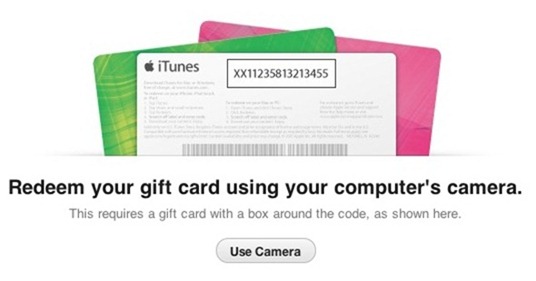
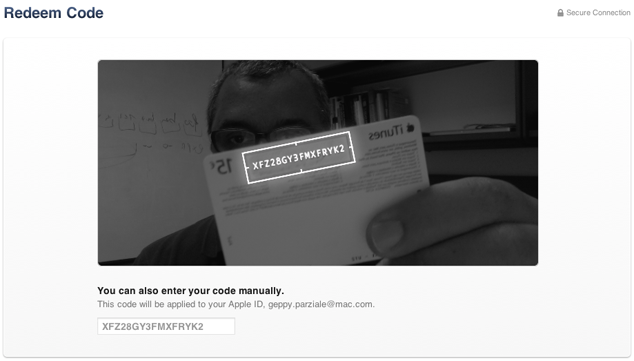
A feature in Apple's iTunes 11 allows you to scan a gift card code using your computer's camera. The feature is particularly intriguing for the blind, visually impaired and for dyslexics. While it may be inconvenient for most people to type the 16 digit code, it is impossible for users who are blind or visually impaired, and can be a struggle for some dyslexics. To use the feature position the gift card in front of the computer's camera. For people with visual impairments VoiceOver, Apple's built in screen reader on your Mac will help you frame the card in the picture. Then iTunes recognizes the code and credits the money to your iTunes account. This feature makes it possible for the blind and visually impaired to easily and independently redeem iTunes gift cards. Maybe this cool scanning feature will make its way to iOS in the near future.

Click read more below to view pictures of the scanning feature in action.


Minggu, 25 November 2012

Livescribe Sky Wifi Smartpen: Handwriten Notes With Audio in the Cloud


Overview:

The Sky Wifi Smartpen from Livescribe is a WiFi enabled pen that has a built in audio recorder. This allows you to digitize handwritten notes which you can sync to Evernote wirelessly when in a compatible WiFi hotspot. (See below for Evernote description) The smartpen allows you to take handwritten notes which are linked to an audio recording of what was being said at the time you wrote your notes. The pen can record audio using a built in or external microphone. Using specially designed note paper, you simply touch "record" at the bottom of the dot paper page and begin writing notes. The camera at the bottom of the pen tracks where you write and the built in microphone records what is being said. The result is that your writing is linked with whatever was spoken at the time. In other words each pen-stroke is linked with the sound that you heard at that time. So if you are in class and your teacher is discussing President Washington and you write "President Washington" later you can playback everything the teacher said about Washington at that time by touching the pen to the words "President Washington."

Many of the pen's functions are accessed by touching buttons printed on the specially designed dot paper with the tip of the pen. When you are done taking notes you simply press the stop button at the bottom of the dot paper notebook and your handwriting and audio recording is automatically synced to Evernote. Click here to view a sample note. From Evernote you can view the note and listen to the audio or share the note.

Click read more below to read the full review.

Benefits:


The Sky Wifi Smartpen has numerous benefits for students, business people, and teachers. The pen allows you to hand write your notes but still have them available electronically. The linked audio is great for reviewing and remembering class notes or business meetings. Also you do not need to worry about using a stylus and tablet.

Set up:


Setting up the Sky WiFi Samrtpen was a bit complicated. Luckily it is a one time set up. In order to connect to Wifi you must use the printed keyboard on the inside cover of your specially designed dot paper notebook. However, you currently cannot connect to wifi networks with hidden SSIDs or networks that require a sign-in or agreement page to connect. Connecting the pen to your Evernote account is very easy.

Hardware:

The smartpen looks like a normal pen but is a bit thicker in order to accommodate all of the electronics. It is comfortable to hold and easy to write with. The pen only includes one physical button which turns the pen on and off. On the front is a small screen, microphone, and speaker. The microphone works well even from long distances, but sometimes picks up the sound of the pen writing. The speaker is adequate for personal use in a quiet room but you can also plug in headphones to the headphone jack on top. The top also has a micro-USB for charging. On the bottom is the ball point tip which is replaceable and a camera which tracks where you are writing on the dot paper. The bottom half of the pen has a slightly rubberized feel that prevents the pen from slipping from your grip. Having wifi turned on degrades battery life but you can turn wifi off by taping the wifi off button on the front cover of your notebook.

Evernote:


Evernote integration is a huge plus for the Sky Wifi Smartpen. It makes it seamless to view and listen to your notes on virtually any devices. Evernote is a free internet storage service designed especially for note taking. Evernote is an online services designed to help you organize notes and information. Evernotes has apps for iOS, Android, Windows Phone, Blackberry, Windows, and Mac. Evernote also allows you to search for text within your notes and organize notes using tags. Evernote also makes sharing a breeze. Your shared pen casts can be view and played on almost any device with the Livescribe player. From within the Livescribe player you can click on any part of your notes to hear what was being said at that time.

Accessories:


The smartpen needs dot paper to work. You can print the dot paper from certain printers or buy it from Livescribe's website. The dot paper comes in notebooks, sticky notes, or index cards and cost somewhat more than normal paper. One small notebook is included with the smartpen. You can add  a recording headset that adds external microphones for increased audio quality. Standard headset such as the Apple headphones with microphone will also work.

Uses:


The smartpen has exciting educational applications. It can be used to help students who have trouble with note taking or who need a little extra help reviewing for tests and quizzes. Students can outline notes and rely on the audio to supplement anything that wasn't written. It could also be used for people with attention issues because if they forget to write down something they can still go back and listen to what they missed. One very exciting application of the pen is for students who are exempt from taking notes. The student who takes notes for the students with disabilities could use the pen to take notes and then immediately email the notes to any student who needs them. This would eliminate any delays in receiving notes and would also not require a teacher to make copies. It also eliminates concerns about the readability of carbon copy notes.

Still To Come:

Sometime in early 2013 a wireless software update will allow you to share your notes to Dropbox, Email, Facebook, and Google Drive. Stay tuned to the Assistive Technology Blog for news about the Sky Wifi Smartpen.

Pricing and Availability:

The Sky Wifi Smartpen costs $150 for 2gb of storage, $200 for 4gb, and $250 for 8gb. Storage is internal and non-upgradable. The smartpen is available online at Livescribe.com and select Best Buy stores.

Videos:


The device was provided complimentary to reviewer .

Rabu, 25 Juli 2012

Apple Releases OS X Mountain Lion With New Accessibility Features


Apple's Mac operating system has been updated. The new update is called OS X Mountain Lion. The new operating system includes over 200 new features including a number of accessibility enhancements. One feature called Dictation allow users to speak their text input instead of typing. Mountain Lion also includes better syncing with iOS devices. OS X Mountain Lion also includes enhancements to VoiceOver. To view a detailed list of all new accessibility in Mountain Lion click here. Apple's website says the following about about OS X accessibility,

"Every Mac comes standard with a wide range of assistive technologies that help people with disabilities enjoy the power and simplicity of the Mac. We call this Universal Access, and it includes many features you won’t find in other operating systems at any price. In OS X, they’re built right in."
To view a detailed list of OS X accessibility features click here. OS X Mountain Lion is available for download from the Mac App Store for $19.99. Click here to download Mountain Lion. Click read more below to view images of Mountain Lion.


How To Use
  • Put the link on the
  • Generate Link box with http:// or https://
  • Use  CTRL + V  on keyboard to put the link.
  • Click Generate button to get encrypted link.
  • Click Copy URL button.
  • Done