MegaRid: iPhone
News Update
Loading...
Tampilkan postingan dengan label iPhone. Tampilkan semua postingan

Rabu, 17 September 2014

Apple Releases iOS 8 with Major Accessibility Improvements

Apple Releases iOS 8 with Major Accessibility Improvements


Today, Apple released iOS 8 the latest software update for iPhone, iPad, and iPod Touch. The new software, which is available for free, includes many new features and enhancements, including new accessibility features and tools that will allow developers to make the next generation of apps. Apple has not stood still in terms accessibility and as a result, iOS 8 is truly the most accessible and inclusive iOS version to date.

Some of the most exciting new accessibility features are included in iOS are ready to use right after updating. These features are developed by Apple, and most are found under Settings > General > Accessibility.

Speak Screen is one of the new accessibility features that allows users to quickly and easily have content on the screen read with text-to-speech with a simple two finger swipe down gesture. Unlike older versions of iOS which required users to highlight sections that they wished to be spoken, Speak Screen does not require any highlighting. Users can even ask Siri to “speak the screen” to start text-to-speech.

Apple’s highly acclaimed screen reader, VoiceOver, also received some substantial updates. Now, VoiceOver users can enter text using a system-wide virtual six-dot Braille keyboard. Zoom is also vastly improved with windowed magnification and filters. Guided Access and AssistiveTouch have seen smaller improvements.

In addition, all accessibility features that use speech will now be able to use the Alex text-to-speech voice that many Mac users enjoy. All of these features are included with the iOS 8 update. Stay tuned for in depth information about the features discussed above in the coming days and weeks.

With iOS 8, Apple has given developers tools to make the next generation of great apps. Hopefully, assistive app makers will be able to take advantage of these new features to help people with various needs. Developers can now make system wide keyboard apps. iOS keyboards will now be able to enter text into any app if the developer updates the app for iOS 8. For example, Fleksy and SwiftKey are expect to receive an update shortly to enable text entry into any app. Developers can also add the ability to unlock their app using Touch IDfinger print recognition for devices with Touch ID. Lastly, developers can create extensions to allow their app to perform functions within other apps. For example, a translation extension could be used within Safari to eliminate the need to switch apps.

These features open up a whole new world to app developers and it will be exciting to use some of the new apps that take advantage of these new developer features. While some apps have already been updated to take advantage of the new developer features in iOS, many have not been. Check back to read about some apps that are taking advantage of these new developer features in ways that can help people with disabilities.

iOS 8 is a free update that you can download now. Stay tuned to the Assistive Technology Blog to learn more about the new included accessibility features and about apps that take advantage of the new developer features.

Kamis, 17 Juli 2014

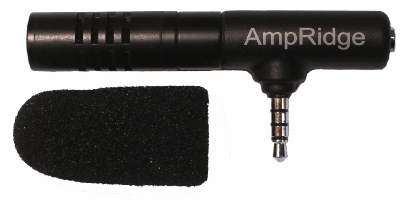
Too Much Background Noise when Recording Lectures with Smart Phone or Table Built-in Microphone? Check Out the Ampridge MightMic


Mobile devices are convenient tools that students use to record classes and lectures, reporters use to record news conferences, and business people use to record meetings. Some use note taking apps like Notability, Remarks, or Livescribe+ to augment their notes with audio recordings. The benefits of recording the audio can be minimized by poor quality recordings from built-in microphones.

Built-in microphones tend to do a poor job of isolating sounds which results in background noise that makes the desired sounds difficult to hear, especially for people with hearing impairments.

The AmpRidge MightyMic microphone plugs directly into the headphone jack of any smartphone, tablet, or computer that supports microphone input. It proves an alternative audio output jack so users can still plug in headphones while the microphone is plugged in. Its compact size makes it easy to use in class and makes in relatively discrete. The MightyMic microphone works well with an iPhone and is only slightly longer wider than the width of the phone. The microphone  even worked fine with my bulky iPhone case. Once plugged in you can angle the microphone towards the front of the room to capture the most important sounds. In my testing, the MightyMic microphone was on par with the built-in iPhone microphone for close range recording, but worked considerably better than the built-in microphone in a classroom or outdoor long range environment. The MightyMic microphone reduced background noise resulting in better sounding audio playback. If you frequently record classes, lectures, or meetings and are less than satisfied with your device's built-in microphone, the MightyMic mic is a good option to give your sound a boost. If you're looking for a big improvement in sound quality quality you may have to look towards more expensive options.

The Ampridge MightyMic retails for $70 on AmpRidge.com. Also included is a protective carrying pouch and foam protective cover.


Product was provide complimentary to reviewer for review


Minggu, 13 April 2014

Learning Ally Audio Update Includes Background Audio Support


Learning Ally, a provider of audio books for the blind and dyslexic, recently updated their iOS app. The free apps allows Learning Ally members to listen to their audio books while on the go. The new update brings a valuable  new feature to the app. Now, the app allows users to listen to their audio books while using other apps at the same time, a feature commonly called background audio. The update provides a more consistent experience for users who have come to expect background audio support in all apps. With the update users can listen to an audio book while looking up information on the internet, reading a note page, or even responding to an occasional text message. Along with background audio support comes the ability to control playback using control center or a headphones with a remote. The update is available for free and is compatible with iPhone, iPad, and iPod Touch. To take advantage of the app users must be members of Learning Ally. To learn more about Learning Ally click here.

Sabtu, 15 Maret 2014

Voice Dream Reader Updated to Version 3.0: Read PDFs in Original Layout and More


Voice Dream Reader is an app for iPhone, iPad, and iPod Touch that supports people who prefer reading in different ways. Voice Dream can read documents from a number of sources with multiple high quality text-to-speech voices. Users can import PDFs, Word documents, text files, webpages, and even Bookshare books into the app. Once the text is loaded into the app you can listen to it using text-to-speech, highlight the text, search for a specific words or phrases, and get definitions for unknown words. Among many other uses, Voice Dream Reader is a terrific Bookshare book reader for students. Voice Dream also works very well with VoiceOver. Now, with newly released Voice Dream Reader version 3.0, new features have been added that makes the app even more useful.

Up until yesterday evening, Voice Dream only supported text. All images and formatting associated with a file were stripped away. With version 3.0 images and formatting within PDF files are retained. Now you can read a PDF in its original layout. Voice Dream still highlights each word as it is read aloud. It is easy to switch between layout view and text view depending on your preferences. Version 3.0 also includes more customization options. Users now have more control over the colors of the highlighting and spacing of the text. An improved web browser has been added that makes adding text from the web quicker and easier. New Ivona text-to-speech voices are also available for purchase in version 3.0.

With large PDF files page loading is slightly slow, but this problem only occur with very large files and does not effect text view performance.

In future updates image support maybe added for Bookshare books or other document types. I also hope iCloud sync will be added in a future update. At school I read my books on my iPhone and make new annotations, but when I get home and start reading on my iPad the annotations are stuck on the iPhone and I must search for the page that I left off on. iCloud sync would make this process much more seamless.

Voice Dream Reader is a must have app for iOS users with print disabilities or anyone who could benefit from reading with text-to-speech. Voice Dream Reader's well developed features make loading, reading, and annotating text easy. Knowing that the app has a developer that is open to feedback and actively developing new features is an added benefit. Voice Dream Reader costs $9.99 on the App Store. Click here to download the app. There is also a lite version of Voice Dream Reader that allows you to try it before you buy.

Click read more to view screenshots of Voice Dream Reader.


Minggu, 23 Februari 2014

Launch Center Pro: Speed Up Common Actions on iOS Devices


blue icon with rocket ship in the middleLaunch Center Pro is an app for iPhone, iPad, and iPod Touch that allows users to launch apps and simple tasks directly from the app. Instead of launching Safari, navigating to the search site, and typing in your search, for instance, Launch Center Pro lets you directly search Google or Wikipedia; Launch Center Pro also can be configured  by users to set up group email, instead of having to type in the email address of each recipient.

Launch Center Pro uses a simple interface to make it easy to simplify some of your common actions and launch them quickly. I frequently text my sister "where are you?" Instead of launching the Messages app, finding my sister's contact, and then typing the message, I created a Launch Center Pro action that sends a text to my sister saying, "where are you?" Now, when I want to text my sister, I just touch the icon for this action and a text saying "where are you?" is on its way to my sister.
,
Creating actions is easy with the built in action composer which gives users the ability to pick pre-made actions for apps they already have installed on their device. The action composer also allows users to customize the icon of the action to make it easier to find.

Launch Center Pro works with a number of apps, but support for more useful actions among third party apps is hit or miss. Some apps such as Prizmo integrate very well with the app allowing you to easily launch actions, but other apps such as Nike+ Running can be opened, but not further interacted with. It would be nice to be able to start a new run in Nike+ via Launch Center, but actions like that requires the developer to build special support for Launch Center Pro into their apps. Click here to view a list of the apps currently supporting Launch Center Pro.

I see Launch Center Pro as a great app for first time iOS users, and other individuals who struggle performing sequential functions. Launch Center Pro can make it easier for first time iOS users learn to use their devices. Instead of learning how to search Google, Wikipedia, Yelp, and Google Maps individually a simple search menu could be made with quick links to search all those services. In terms of accessibility for the blind and visually impaired, Launch Center Pro works well with VoiceOver and supports the Fleksy keyboard which is accessible.

Launch Center Pro costs $4.99 for the iPhone version and $7.99 for the iPad version. Click here to view the app for iPhone and click here to view the app for iPad. Click read more below to view screen shots of Launch Center Pro in action.


App was provided complimentary to reviewer for review 

Selasa, 26 November 2013

ClaroPDF App: PDF Text-To-Speech and Annotation (Giveaway)


ClaroPDF is an accessible PDF reader with many annotation options. The app uses text-to-speech to read any text based PDF. The app also includes numerous annotations options including highlighting, text boxes, underline, strikeout, shapes, and images. ClaroPDF includes a simple design that matches the interface of iOS 7. Unfortunately, there is no full screen option that hides all controls so you can better focus on your document. To start reading a PDF you can use the open-in feature of many other apps or import a document using Dropbox. Then you can use a number of high quality text-to-speech voices to read the document at up to 240 words per minute. It would be nice to see the maxim speaking rate increased to around 400 word per minutes for people who are able to understand high rates of speech. To start reading the document you can just tap on a word a press the play button.

Currently in version 1.2.6 there is a bug that causes layout issues with certain documents. The issue causes documents to not fill the entire screen.

Besides a great interface ClaroPDF includes a wide variety of annotation options. These annotations are easy to add and manage. ClaroPDF even includes the ability to add voice notes. One option that is not included is the ability to automatically add text notes to every blank in a document. This feature would significantly speed up the process of filling out forms.

ClaroPDF costs $0.99 and works on the iPhone, iPad, and iPod Touch. Watch the video above to see ClaroPDF in action a click read more below to view screenshots of ClaroPDF in action. Click read more below for giveaway details.

Giveaway

Retweet and follow the ClaroPDF below tweet  for a chance to win one of ten promo codes. Code expires on 12/24/13 and is redeemable only on the iTunes Store for the United Kingdom. Requires an iTunes account, subject to prior acceptance of license and usage terms. To open an account you must be above the age of 13 and in the United Kingdom. Compatible software and hardware, and internet access (fees may apply) required. Not for resale. Full terms apply; see www.apple.com/legal/itunes/ww/. For more information, see www.apple.com/support/.


Jumat, 23 Agustus 2013

Video communication apps and mobile learning

One of the great things about mobile devices such as tablets, iPads and phones is that most modern devices have good quality cameras and microphones built in. This opens up a really wide range of potential for communication and speaking practice that used to be such a struggle to organise on older laptops and desktop computers.

App developers have also been quick to exploit the potential of this powerful tool and in this post I'd like to look at some of the tools that have been created and how they can be used for language development.

Mailvu for asynchronous messages


Mailvu has been a long time favourite of mine, mainly because the web based version is so easy to use and doesn't require any downloads. You just point your browser at: http://mailvu.com/ and as long as you have the Flash plugin installed on your computer you can start recording immediately. Mailvu also provides mobile apps for iOS, Android an Blackberry. These are easy to use and it allows you to send short spoken messages which don't require the viewer to have any specific software or to download large video files. They just click a link and watch your message. This kind of cross platform compatibility is really important if you are working in a BYOD environment where students could be coming to class with a wide range of devices.

EyeReport for picture in picture


EyeReport  puts an interesting twist on the video communication genre by adding the ability to record video on video. By this I mean that students can upload or record a video on their mobile device and then add a video commentary over the top explaining or commenting on what they see in the original video. This opens up a whole range of potential activities that we can get students doing. They could add commentary to sporting clips, give guided tours of places they have visited, explain processes or even make their own documentaries. Once students have completed their recording these can be shared to YouTube, Facebook, Twitter or emailed directly from within the app.

CoachesEye for video annotation


CoachesEye is a similar app to EyeReport (though this one is no longer free) but is much more feature rich. Like EyeReport you can record video commentary over video, but with CoachesEye you can also add annotations and you can stop and control where you insert your comments into the video. This app was designed for coaches to give detailed feedback to athletes on their physical movements, but it's a great app to get students creating and talking about their own videos, and also a useful tool to use when observing teachers for training purposes.

Storytime for bedtime stories 


Storytime is another app which puts a new Twist on the video communication genre. It combines video conferencing with reading stories out loud. The app was designed to enable parents to read to their children from a distance and it contains a number of books you can choose to read and while you read you can discuss the books, ask questions and point to things on the page whilst chatting with the video window at the top. This is great for doing online tutoring with younger learners. There is quite a range of books from very basic and up and they are nicely illustrated.

Teleprompter for controlled speaking practice 


Teleprompter is an app that I wrote about a while back when it was still free (iPhone for Speaking Homework ). The app is what it says, it allows you to import text and then it scrolls through the text while creating a video of you reading it. This is great to get students doing controlled speaking practice and then watching and improving their speaking. You can set texts which include a range of sounds which they find difficult and then watch them together and help them to understand what elements of their pronunciation are causing problems.

Keek for video journals


Keek mixes web with mobile in the form of video journals. Users can post short messages of up to 35 seconds from their mobile or computer and these are published to the web or can be browsed through the app. This would be a great tool to use as a daily learning journal, but it's probably best used by adults or more responsible teens. It seems to be a very popular tool with teens in the USA and there is a wide range of content that students can browse through, some of which is not best suited to educational purposes, but as a concept this is quite a good app. If you prefer your students to be sheltered from this kind of popular culture app, then you can still take up the idea of the video learning journal and just get them to use their built in video camera app and post the messages to a Dropbox site.

Six3 for video messaging


Six3 is similar to MailVu and also compatible with most platforms, but it gives you the choice of recording private or public message and has an additional filter feature which can help to improve your appearance on the video. It's called Six3 because you have 63 seconds of recording time in each message. Like Mailvu, the messages are also sent via links through your email, but they can also be posted directly to Twitter or Facebook from within the app.

Skype for synchronous online tutoring


Skype has been around for a good while and was one of the first video based communication tools to break into the mainstream. It's being used by many online schools to deliver live online lesson from teachers to all parts of the globe. One of the great things about Skype, apart from the reliability, is that it keeps developing and adding new features. The recent addition of video messages that enable it to be used as an asynchronous tool will really help to widen its scope for use as a language development tool.


Built in camera app
With all these apps and the possibilities they offer, it can be easy to overlook the obvious. Most modern mobile device come with a built in video camera application and you can always use this to record and send video message. This has the advantage that messages are very safe from third party app providers and any possible security breaches, but sending the video clips to someone else often involves sending the whole clip via email which can be slow and require good connectivity.

For more ideas and activities for using video and webcams to develop languages see my posting 20 WebCam Activities for EFL ESL Students

Why use video communication?
  • Well one of the best reasons to use these kinds of apps is to get students speaking. Speaking homework has always been particularly difficult for students, but now you can ask students to produce spoken homework which you can watch and assess.
  • Video as a communication genre is likely to become increasingly important as a 21st century digital literacy, so it's important that our students have practice and are able to use this communication genre, just as they do with speaking on the telephone or writing emails.
  • Video can draw students' attention to many of the paralinguistic features of communication that are hard to highlight in a crowded classroom.
  • Enabling students to record themselves speaking and then to watch themselves can be very enlightening for students as they can then start to self assess their own performance and look for ways they can improve. It can also encourage some students to try harder, because they know that someone else might see the video.
  • Video can be very engaging and can be played repeatedly so it gives students the chance to listen again and in more depth.
  • Video communication can help teachers to build a stronger sense of connection with their students, especially with online course when you might never physically meet your students. Conveying some sense of your personality, sense of humour and character can be very difficult in written communications, so video has some really big advantages.
  • Giving students 1 to 1 time and having the time to just sit down and spend a few moments listening to a single student without the noise of others around can be really difficult in the classroom, but having a short recorded video clip of our students can really enable us to focus on their specific strengths and weaknesses and enable us to give them some really personalised feedback.
Potential problems
  • As with any kind of online communication, make sure your students know how to protect their privacy and also themselves from harassment. Be sure to have a transparent and open policy on any kind of harassment so students know what is likely to happen to anyone harassing and how to report harassment.
  • If you are using video communications with younger students also make sure their parents know what you are doing and why you are doing it and get their approval (in writing if possible) and if possible get them involved too.
  • Make students aware of the difference between poor quality speaking and poor quality audio. You don't want them to think they sound bad if the real problem is the recording quality and interference from background noise etc. Help your students to understand how to get he best quality results from whatever recording tools they have, by finding somewhere quiet to record and experimenting with the best distance from the microphone.
  • Helping students to look their best on video will also help to boost their confidence. Getting the camera angle right and having the light coming from the right direction can also have a big impact on how students look, so helping with this can be part of the learning experience. There is a useful article here which may help: http://www.makeuseof.com/tag/look-good-on-webcam/
  • Always remember and remind students that anything they do or say on video can potentially be seen by other people for years and even centuries to come, so whenever one of these apps is used, encourage them to think about what they are doing and saying and keep in mind that it could be seen by people they know and people they might yet meet as well as strangers who they might never meet. It's important to remind students of how they want to be perceived.

I hope you enjoy these apps and that they help to get your students speaking. Please leave a comment if you have any favourite video communication apps that you use to get your students speaking.

Related links:
Best

Nik Peachey

Rabu, 24 Juli 2013

Reveiw: Celluon Epic Laser Keyboard

Reveiw: Celluon Epic Laser Keyboard


The Celluon Epic is a Bluetooth laser keyboard. The compact device projects a QWERTY keyboard onto most flat surfaces. (Glass tabletops being the exception) You can connect the Epic to vertically any device that supports Bluetooth keyboards including devices running iOS, Android, Windows Phone, and Blackberry 10. On the back of the device there is a charging port and pairing button. Once you have the Epic paired with your device it acts the same as any other keyboard.

For any keyboard the most important consideration is the typing experience that it provides. The virtual keyboard brightness is adjustable and is easy to see in most lighting conditions. Unfortunately the brightness does not automatically adjust based on ambient light. With each keystroke a beeping sound is played which can be turned down. The typing experience on the Epic is mediocre at best. Inadvertently activating the wrong key can make typing frustrating and tiring. Even if you are a touch typist you'll still need to look down on the laser keyboard as you type. The Epic is definitely not for the blind or visually impaired.

Compared to a conventional keyboard the Epic doesn't hold its own, but if you look as the Epic as a supplement to your on screen keyboard the Epic looks more promising. If you have trouble typing on your smartphone or tablet the compact Epic may be perfect for you. You can easily bring the Epic along in your pocket and then use it when you need to type a longer email or text.

The Epic is available directly from Celluon for $169.99 and through Amazon for a special price of $149.99. Click read more to view more photos of the Celluon Epic.


Rabu, 12 Juni 2013

Why I don't want an IWB (Interactive Whiteboard)

Recently, I have been asked quite  few times about IWBs and which ones are best etc. My usual answer is 'none' and then I have to explain, so I thought, instead of explaining I would write this post so that I could point people towards each time they ask.

So this is my classroom set up of preference and these are the key components.


1. Data projector - I'm not really bothered which one as long as it produces a good screen resolution (There's a reasonable article here on how to choose one:
How to Buy a Projector)


2. A Laptop - My preference here is for a MacBook, but I can understand why some people find that extravagant and don't feel they are worth the extra financial outlay. Personally, I think they are worth the extra money, because they work faster and so save time (the most valuable commodity we have) and because they are pretty durable(The Apple products I've owned have lasted at least twice as long as their PC counterparts I've had and are still going strong.)


3. iPad - Again my preference here is for the iPad mini, because it is so light to hold in one hand and pass around, but still big enough and powerful enough to fulfil my storage needs and to operate without squinting (also quite a bit cheaper)

4. Reflector app - This is a key app that you download onto your laptop. It then enables you to project your iPad screen onto your computer (and so through the data projector) as it wirelessly receives signals from the iPad's Airplay function.


For those who aren't familiar with Airplay, it's an Apple function that allows you to use the wireless to project sound and vision from an iPhone, iPad, iTouch etc of to Apple TV. You can find more information here: Airplay

Why I like the Airplay enabled set up
  • For me this allows the best of both worlds. I can use the laptop for any software that's native to computer world and very quickly and wirelessly switch to the mobile environment of the iPad.
  • This set up is portable so you can use it in any room with a data projector and computer, as long as the Reflector app is installed.
  • This also has the advantage of allowing your students access to the data projector if they also have iPads, in fact the Airplay function combined with Reflector can allow your students to project onto the screen from a number of iPads simultaneously, which is great to get students showing and comparing work for the whole class to see.
  • Controlling the projection screen from the iPad means that you can move around the class and control it from wherever you are.
  • To hand control over to students you just pass them the iPad
  • You can store all your materials on your iPad and use it to do all your preparation / marking etc at home.
  • You don't have to fiddle with replace or try to find those awful IWB pens.
  • The iPad gives you access to the vast range and variety of apps that you just can't run on a computer or IWB environment. 
  • An iPad and a $12.99 app are hugely cheaper than the cost of an IWB and far more flexible.
  • You can also use the Reflector app to record screen activity so you can easily turn parts of your lessons into flipped learning or useful revision.
  • The iPad and laptop set up provides an authentic digital learning environment so digital literacies can be developed, whereas IWB software is an artificial digital environment which students will only encounter within schools.
There are of course some downsides to this arrangement. 
  • Hand writing on the iPad screen isn't so comfortable even with a stylus and a good whiteboard app (though if you want to try it I would recommend Bamboo Paper).
  • The Reflector app isn't free, but it is very cheap ($12.99) so much cheaper than an IWB.
  • This set up only works with Apple mobile products as the controller (Though you can use any laptop to install the app on), so if your students bring along Android or other devices they won't be able to access your projector (but they wouldn't on an IWB either).
  • The Reflector app runs through the wireless to connect the laptop to the iPad, so you may need to have some specific ports open if your IT manager has them closed.
If you don't have the choice and you already have an IWB, then that's fine, you could still install the Reflector app and start using an iPad too, but given the choice it's pretty clear. So, now hopefully I'll be getting asked this question a lot less often.

Do post comments and let me know what you think. I'd also appreciate hearing about any alternative apps you may have used to connect your iPad and especially your Android tablet to the projector

Related links:
Best
Nik Peachey

Rabu, 01 Mei 2013

Kindle App For iOS Updated With VoiceOver Support

Kindle App For iOS Updated With VoiceOver Support


Today Amazon updated their Kindle iOS app with VoiceOver support. VoiceOver  is a gesture controlled screen reader for the iPhone, iPad, and iPod Touch designed to help the blind and visually impaired. The text-to-speech feature can benefit people with dyslexia as well. Amazon describes the new features as follows,
"Accessibility features make it easier for blind and visually impaired customers to navigate their Kindle libraries, read & interact with books, and more. Enable VoiceOver in your device settings to begin."
VoiceOver support for the Kindle app comes shortly after the Nook app was updated with VoiceOver support. Despite VoiceOver support it is possible that certain books may have accessibility issues that make them inaccessible. Irronically, the Kindle iOS app is now more accessible for the blind and vissually impaired than physical Kindles. Kindle for iOS is avalible as a free update in the App Store.

Click read more to view screenshots of the Kindle app.


Senin, 22 April 2013

Proloquo2Go 3.0 Coming Soon With Exciting New Features


Proloquo2Go 3.0 is coming soon according the maker AssistiveWare. If you are unfamiliar with Proloquo2Go click here for background information. Proloquo2Go is the most well known alternative and augmentative comunication (AAC) apps for iOS devices. AssistiveWare does not seem be resting on its laurels and has some exciting new features planned for upcoming version 3.0. One of the new features is something AssistiveWare calls ExpressivePower. This new features will allow users to create buttons with certain intonation and emotion. This is great news for people who uses Proloquo2Go for everyday communication. Users will also be able to switch between voices more quickly in version 3.0. Version 3.0 will also include greatly improve switch access and more options to manage switches. Proloquo2Go 3.0 will be a free update for all current users in the next month or so. Proloquo2Go is avalible in the App Store for $189.99.

Click read more below to view videos about Proloquo2Go.


Minggu, 21 April 2013

Use Guided Access for iOS to Safely Lend Your Phone to Friends


Has someone ever asked to borrow your iPhone to call home, but then went through your personal information? Hopefully not, but it has happened to many kind-hearted phone lenders. Luckily using the built in Guided Access feature you can hand over your phone with less worry. Guided Access is designed as an accessibility feature but can be used by everyone. To learn more about Guided Access click here. Even with this feature use caution and common sense when lending your phone to people.


To get started, go to "settings" then "general" and then "accessibility". Guided Access is only avalible in iOS 6. In the accessibility menu go to Guided Access and turn it on. Then you will have to set a passcode. Make sure you remember your passcode. Now when you want to lend your phone to someone go to the app you want them to use and triple click the home button to start Guided Access. After turning on Guided Access no one will be able to access any other app without knowing your passcode. When you get your phone back just triple click the home button again and type in your passcode to unlock your phone. Watch the video above to learn more.

Sabtu, 06 April 2013

Criteria for Evaluating Web Tools and Apps

Criteria for Evaluating Web Tools and Apps

I'm often getting asked what my criteria are for choosing the tools, apps and resources that I feature on my blogs and in my teaching and do be honest I don't really think about it that much. I look at so many sites and apps that I just get a feeling when I see something that I think will work.

As that isn't a very satisfactory answer to give people I decided to start exploring my own criteria for what influences my choice. I ran a workshop on this topic at IATEFL 2013 on looking at apps and how we can evaluate them.


I came up with a number of 'first impression' criteria that I think I apply before even thinking about 'how' I will use the app / tool.

Here is the presentation / workshop recording


You can download a copy of the presentation from here: Evaluating Web-based Tools

Please feel free to browse the list and add any 'pros' and 'cons' for anything you think I've missed.


powered by tricider


I hope you find these criteria useful as a starting point for your own reflections on why you choose to use certain apps and not others.

Related links
Best

Nik Peachey

Sabtu, 30 Maret 2013

Mix Images and Animation on Your Mobile

A couple of years back I wrote about a really nice web based tool called Xtranormal and since then I've heard from so many teachers saying how useful their students have found it, so I was delighted yesterday to find that the same makes had now produced a free mobile / tablet app called Tellagami. The app runs on a mobile device and allows users to add animated speaking characters to a selection of backgrounds or to the users' own images. You can then either use text to speech to write a script for the character, or you can record your own voice and the app will lip-synch you text to the character. This is very quick and easy to do. Here's how.

Open the app an click on create.


Then choose your background, either from the ones provided, from your own image library or you can take a photograph of wherever you are at the time.

Then you can choose the character you want to use and customise their appearance.
Next you can select an emotion for your character.

Lastly, you can either type in your message or record it directly onto your device. You can record up to 30 seconds of spoken audio.

Once you animation is complete you can either send it by email, share it through various social networks or just save it onto your device to show it in class.


 You can complete the whole process in just a couple of minutes.

I think this is a great app to get students speaking either in the classroom, at home or while they are out and about in the world.

Some learning activities for students
  • Ask the students to create 4 - 5 animated images explaining their route to school.
  • Get students to create animated images of 4 - 5 of their favourite places around their town.
  • Get students to take pictures of objects and create an animated video dictionary.
  • Get students to talk about images of people in their family.
  • Create some animated images of different steps in a process (making coffee, tea etc) and then get the students to watch and put them in the correct order.

  • Get students to create an animated image journal by adding one new image each day.
  • Get students to take pictures of their favourite book covers or film posters and then record a review.
  • Get students to create animated video cards on special occasions.
 I'm sure there are lots more activities you can think of.

What I like about Tellagami
  • It's free and very easy to use.
  • It encourages students to speak.
  • It can be used effectively outside the classroom.
  • Students can use it to pull some aspects of their own life and experience into the classroom.
  • It produces very professional looking results.
Possible problems
  • At present it's only available for iPhone / iPad so that limits who can use it.
 So if your students have iPads / iPhones and you ant to give them motivating speaking assignments for homework, Tellagami is a great tool to use for the job.

I hope you find it useful.

Related links
Best
Nik Peachey


How To Use
  • Put the link on the
  • Generate Link box with http:// or https://
  • Use  CTRL + V  on keyboard to put the link.
  • Click Generate button to get encrypted link.
  • Click Copy URL button.
  • Done