MegaRid: Google
News Update
Loading...
Tampilkan postingan dengan label Google. Tampilkan semua postingan

Kamis, 13 Agustus 2015

AXS Map: Crowdsourced Accessibility Reviews of Businesses


AXS Map is an app available for iOS and Android that allows users to rank the accessibility of local businesses. Using the location of the device users can search for nearby businesses and rank the accessibility of the location in very basic terms. More detailed accessibility information and information for people with a wider range of disabilities would improve the app.

While accessibility standards established by the government are exact and technical, AXS Map uses a star rating system. For example, a businesses that is easily accessible to people with disabilities would earn a five star ranking. The app also allows users to rank a business based on the noise level, which can be helpful for people with hearing impairments, and by light which can be helpful for people with visual impairments.

I was recently involved in a "Mapathon" were a group of people used the app to map parts of the city. This experience helped me understand the value of the app, as some businesses had serious accessibility issues such as numerous steps with no ramps.

The data that is inputted through the app or the website can then be viewed by people interested in the accessibility of a business. For example, a person with a physical disability could check the app to make sure that a coffee shop had a ramp.

If the AXS Map platform becomes popular it could even prompt businesses with poor rating to make improvements.

While the concept behind AXS Map is good, the implementation is a little rough. The app is not intuitive to use and can be frustrating. However, it does work once you get familiar with the interface. The app also requires users to enter their email which could steer some users away.

To use AXS Map visit AXSMap.com or download the app for iOS and Android. Click here to download the app for iOS and click here to download the app for Android.

Kamis, 08 Mei 2014

Google's Project Ara Smartphone has Tremendous Accessibility Potential


Google's futuristic modular smart phone has the potential to dramatically change how we think of electronics. The still unreleased phone call Project Ara has a interior metal structure with slots for different components to connect. For example, modular components could house a camera, battery, touch screen display, or speaker. These components snap into place making a relatively standard looking smartphone. Consumers could purchase components and assemble them to make a personalized smartphone. The phone allows consumers to exchange a component for extra battery power or a more powerful camera depending on the situation.

With such customizable hardware, the Ara phone could adapt to fit the needs of people with various disabilities. If users have a hearing impairment they could add a louder speaker component. Conversely, if a user is deaf there is no need to waste space with a speaker when the space could be used for something more useful. The possibilities are almost limitless. A blind user could possibly opt not to have a touch screen display in favor of a refreshable Braille display. Users with dexterity challenges could add a tactile keyboard.

While Project Ara sounds promising for people with disabilities, the implementation is key. Will third party hardware developers make specialized components for people with disabilities at an affordable price? Can Google successfully configure Android to work properly with any assistive add ons third parties make?  Project Ara phones won't be available for for many months, but the project offers some exciting possibilities.


Click read more below to learn more about Project Ara.


Jumat, 04 April 2014

iPad mini, Nexus 7, or Kindle Fire HDX: Which Tablet is Best for People with Dyslexia?


Over the past couple of weeks I have been lucky enough to review three of the most popular tablets- the iPad mini, the Nexus 7, and the Kindle Fire HXD. Instead of focusing on battery life, pixel density, and processor speed, I took a look at the features that would help people with dyslexia and other disabilities. All three tablets have some features that are perfect for dyslexics. To figure out which one is right for you, think about which features are most important to you as you read the reviews.
Overview:

When looking for a tablet for someone with dyslexia, there are a number of important factors that must be considered to make sure you get the features that are most important to the user, and get the best value for your needs. First, you want to consider what the tablet will be used for. Will it be used primarily for reading books and browsing the web, or will it be used to type documents, read email, and edit movies. 
Generally, for people with dyslexia, it is important that the tablet have built in text-to-speech with a high quality voice. All three of these tablets have text-to-speech, but the way text-to-speech is implemented is different from tablet to tablet. The iPad allows text-to-speech to be activated in a few taps when reading webpages and text in apps including Safari, Mail and many third party apps including The New York Times. The other tablets require a more time consuming process to activate text-to-speech in all apps.

Next, app quality and quantity is also an important consideration. Currently, the iPad is ahead in terms of app support, but the Nexus 7 is not too shabby in terms of third party app selection either. Apple's lead in terms of third party app selection continues to narrow. See the ecosystem and apps section below for more information about app selection. If the person with dyslexia uses Bookshare or Learning Ally, it is important to make sure that the tablet has apps to support those services. Bookshare is a service that provides accessible e-books for people with print disabilities and Learning Ally provides audio books – some with text - for people with print disabilities. Both the Nexus 7 and iPad mini have Bookshare and Learning Ally apps. The iPad does have better Bookshare support than the Nexus 7.


Design:

The software that runs on the tablet is far more important than the shell on the outside, but you still have to be happy with the way your tablet looks and feels. The iPad mini is the largest of the tablets, but it is still easy to hold in one hand, but not as easy as the smaller Nexus 7 and Kindle Fire HDX 7". The iPad mini has an all metal and glass design that makes it feel worthy of its higher price tag. Both the Nexus 7 and Kindle Fire HDX have plastic backs that feel nice in the hand, but feel slightly less classy then the iPad. The look and feel of the back may not matter much for many users who use cases for protection. The look and feel of the back may not matter much for many users who use cases for protection. All of the tablets are remarkably light, so holding them for long periods of time should not be an issue for most people. 
For people who plan to use the tablets for text-to-speech and audio books, speaker quality, and where the speaker is positioned are other important considerations. For their size, all three of these tablets have good speakers. They all include dual speakers and have good sound quality. The Nexus 7 and Kindle Fire both have speakers at opposite ends of the device to make it difficult to block the sound with your hands while you are holding it, but the iPad speakers are both at the bottom of the device, making it possible, although not likely that you could block the speakers depending on where you position your hands. While the placement of the speakers may not be an issue for you, the differences are worth noting.

Operating System:


All three tablets have different operating systems meaning their software behaves differently. The iPad mini runs iOS 7 which easy to use and smooth. iOS has the best built in accessibility features of the bunch with a well polished screen reader called VoiceOver that can read almost anything on screen aloud using text-to-speech. iOS also includes Speak Selection which allows users to highlight text and have it read aloud using text-to-speech.


Android 4.4 KitKat which runs the Nexus 7 is another solid operating system. Without getting too much into the iOS vs. Android debate, the Android is a little less intuitive to use, but allows for more customization than iOS. iOS has a simple user interface that is easy to use, while Android allows for home screen widgets which can be useful but can also clutter the home screen and make it more confusing to use. Android also includes a screen reader called TalkBack, but it is not as polished as VoiceOver. One of Apple’s VoiceOver's biggest advantages is that it works with more apps than TalkBack.

The Kindle Fire HDX runs Fire OS 3.0 which includes a screen reader much like Android’s TalkBack and locks you into the Amazon ecosystem. If you buy a Kindle you have to buy books, magazines, and apps from Amazon so your options are somewhat limited. The Kindle Fire has an interface that is easy to use an puts your content at the forefront. Your apps, books, magazines, music, and movies are featured prominently on the home screen for quick access.

Reading Features:


These tablets all have unique reading features that differentiate them from each other, but each of the devices  allow users to highlight and annotate books, and define an unfamiliar word with just a couple of taps.


One of the best and most appealing features is on the Kindle Fire HDX and is called Immersion Reading. Immersion Reading syncs highlighted e Kindle text with professionally narrated audio from Audible for a seamless and elegant reading experience. Immersion Reading gives you the best of both worlds by allowing you to listen to professional narration while following along with the text. The one negative of Immersion Reading is that you must own both the Kindle text version and the Audible audio version of a book. The costs add up quickly if you use Immersion Reading frequently. The Kindle Fire HDX also allows you to read select books using text-to-speech. The text-to-speech voice sounds good - better than the Android and iOS default voice - but you can't speed up the speaking rate.


The Nexus 7 also includes reading features that can benefit people with dyslexia. Google Play Books, which is Google’s e-book store, allows you to read books with text-to-speech with synchronized highlighting. The default voice isn't as good as the Kindle's default voice, but you can download higher quality voices. For users of Bookshare and Learning Ally, the Nexus 7 has Android apps for both of these services. Unfortunately, the Bookshare app for Android (GoRead) is not as good as the Read2Go app for iOS or Voice Dream Reader, another app that can read Bookshare books. The iOS apps generally have more polished user interfaces and more advanced annotations options.

The iPad has the best third party app support for reading. Users of Bookshare and Learning Ally can read their books with great iPad optimized apps. The iPad app Voice Dream Reader lets you read many documents and books, including Bookshare books, using text-to-speech. Voice Dream is the best text-to-speech app for mobile devices right now and is only available for the iPad and iPhone. The iPad can access Kindle books using the Kindle app and they can be read aloud with text-to-speech using VoiceOver. However, VoiceOver does not highlight the words as they are spoken. Apple's own iBooks app underwhelms in terms of accessibility features for people with dyslexia. iBooks can be read with text-to-speech using VoiceOver, but VoiceOver does not highlight as it reads and it takes time to learn how to use it properly.

The iPad's Speak Selection feature makes it easy to read webpages, emails, and documents using text-to-speech. To use Speak Selection, just highlight the words you want read aloud and press speak. Speak Selection can also highlight words as they are spoken so you won’t lose your place in the text.

Other Helpful Features:


All of these tablets have other useful features; both the Kindle Fire HDX and Nexus 7 include comprehensive multi-user support. On the Nexus 7 you can create a separate account for a student or child that only allows them to use certain apps on the device. Even if multiple users use the same apps, each user can set them up the way they prefer.


The Kindle Fire HDX includes Amazon Free Time which allows you to restrict the time your child or student can use the device for certain tasks. For example, you could allow only 30 minutes of video watching, but allow for unlimited reading of a Kindle book. Amazon Free Time also allows adults to limit which apps and content are available for children. The iPad has a similar feature called Guided Access, but you can only allow the child to use one app at a time using the guided access feature.

All three tablets also include speech recognition that allows you to speak into the tablet and then have your words appear as text. The Nexus 7 and Kindle Fire HDX allow you dictate even when you are not connected to the internet. The iPad requires an internet connection in order to use dictation.

The Kindle Fire HDX includes a really cool feature called Mayday. If you are having trouble doing anything with your Kindle Fire HDX, you can press the Mayday button to be connected with a live agent in about a minute. You can see the support agent's face and he or she can see your Kindle Fire's screen. They can then walk you through the steps needed to resolve you difficulties. I found the support staff knowledgeable and able to help out quickly. Mayday is how tech support should always work.


Ecosystem and Apps:


It's important to consider the ecosystem of each tablet. The ecosystem determines which apps, books, magazines, and songs are available for your device. The iPad has the best app selection especially for assistive apps. If you want the best apps, the iPad is the way to go. To see a list of the apps I use as a dyslexic student click here.

The Nexus 7 utilizes the Google Play store for apps and its offerings are solid. Currently, you will not find some of the top assistive apps on the Nexus 7, but you will likely be able to find almost all of the big name apps.

The Kindle Fire HDX has good app support, but it falls behind both other tablets. The Kindle is locked into Amazons ecosystem for all apps and books, while the other tablets can download content from multiple sources.

Conclusion:

All of the tablets have solid reading features for people with dyslexia. Which tablet would be best for you, your students, or your child? If using Bookshare or Learning Ally on the tablet is important to you, you should not consider the Kindle Fire HDX. Both the Nexus 7 and iPad support Bookshare and Learning Ally, but the iPad apps offer a better experience for using those services. If you’re not a Bookshare or Learning Ally user and have money to spend of Immersion Reading books, the Kindle Fire may be the best option for you. Just keep in mind that the Kindle does not have quite the app selection of the other tablets. If you want a full-featured tablet and you’re on a budget, the Nexus 7 is a very good option. If you have the money to spend on the iPad, with it unmatched app selection and robust built-in accessibility features, is your best bet.

Pricing and Availability:


The Kindle Fire HDX 7" is available for $229 from Amazon.com. The other Kindle Fire varieties also have Immersion Reading, but only the HDX models have the Mayday support. The iPad mini starts at $399 from Apple and the Nexus 7 costs $229 from Google Play.


Kamis, 03 April 2014

Apple Announces WWDC 2014: Will Accessibility Enhancements Take Center Stage Once Again?

Apple Announces WWDC 2014: Will Accessibility Enhancements Take Center Stage Once Again?

picture of colorful Apple logo made from varying sized rounded squares

Apple announced that their World Wide Developers Conference (WWDC) will take place from June 2nd - 6th in San Francisco, California. At the event, Apple will preview the future versions of iOS and OS X. It is unknown what these changes will entail, but if history is any indication Apple will preview iOS 8 and OS X 10.10. Consistently, over the past few years Apple has steadily improved the accessibility features of both iOS, which runs the iPhone, iPad, and iPod Touch and OS X, which runs on Mac computers. Last year with OS X 10.9 Mavericks, Apple added Switch Control, large text, VoiceOver enhancements, customizable closed captioning, and enhanced dictation. iOS 7 added Switch Control, improved Siri, and ability for developers to utilize system text-to-speech voices.

At WWDC 2012, Apple devoted precious time during their Keynote to detail improved accessibility features found in iOS 6. With millions of users any accessibility improvements can have a dramatic impact on many users. Hopefully, Apple can continue to improve their current accessibility options while continuing to insure that any possible future devices are also accessible to people with all abilities. For attendees, the venue is fully ADA compliant.

Stay tuned to the Assistive Technology Blog to learn all about how the WWDC 2014 announcements impact accessibility.

Sabtu, 08 Maret 2014

Any Developer Can Now Integrate Fleksy's Accessible Keyboard Into Their iOS App


Fleksy is an alternative keyboard for mobile devices including smartphones, tablets, and even smart watches. Fleksy uses predictive software that will guess which word you meant to type even if you mistype every letter. As long as your close to the right letters Fleksy will be able to correctly guess which word you meant to type. This means you don't even have to look at the keyboard. If Fleksy does make a mistake you can easily swipe through alternative suggestions.

Currently, Apple does not officially support third party keyboards to replace the default keyboard on iOS, but developers can get around this limitation by building an alternative keyboard into their app. Today, Fleksy made it easy for developers to built the Fleksy keyboard into their app. The Fleksy keyboard is now available for any iOS developer who wants to include it in their app. This announcement is very exciting because if developers get on board it will give iOS users the choice of which keyboard to use.

Having Fleksy integrated in apps is also a positive for blind and visually users. Fleksy works well with VoiceOver and because Fleksy is so good at predicting which word you are trying to type being able to see the keyboard is not as important. The Fleksy keyboard is much quicker and easier to type on then the default iOS keyboard especially for VoiceOver users.

Unlike Android were you can download Fleksy and use it will all of you favorite apps, each iOS developer will have to build in support for the keyboard. Hopefully, now that Fleksy is available for all iOS developer Fleksy will become ubiquitous on iOS. If you would like to see Fleksy integrated into one of your favorite apps you could contact the developer and ask for Fleksy integration.

To try out Fleksy download the app for iOS or Android. Fleksy is currently available in select apps such as Launch Center Pro. Click read more below to view images and videos of Fleksy.


iPhone Screenshot 2

iPhone Screenshot 3


Minggu, 23 Februari 2014

Launch Center Pro: Speed Up Common Actions on iOS Devices


blue icon with rocket ship in the middleLaunch Center Pro is an app for iPhone, iPad, and iPod Touch that allows users to launch apps and simple tasks directly from the app. Instead of launching Safari, navigating to the search site, and typing in your search, for instance, Launch Center Pro lets you directly search Google or Wikipedia; Launch Center Pro also can be configured  by users to set up group email, instead of having to type in the email address of each recipient.

Launch Center Pro uses a simple interface to make it easy to simplify some of your common actions and launch them quickly. I frequently text my sister "where are you?" Instead of launching the Messages app, finding my sister's contact, and then typing the message, I created a Launch Center Pro action that sends a text to my sister saying, "where are you?" Now, when I want to text my sister, I just touch the icon for this action and a text saying "where are you?" is on its way to my sister.
,
Creating actions is easy with the built in action composer which gives users the ability to pick pre-made actions for apps they already have installed on their device. The action composer also allows users to customize the icon of the action to make it easier to find.

Launch Center Pro works with a number of apps, but support for more useful actions among third party apps is hit or miss. Some apps such as Prizmo integrate very well with the app allowing you to easily launch actions, but other apps such as Nike+ Running can be opened, but not further interacted with. It would be nice to be able to start a new run in Nike+ via Launch Center, but actions like that requires the developer to build special support for Launch Center Pro into their apps. Click here to view a list of the apps currently supporting Launch Center Pro.

I see Launch Center Pro as a great app for first time iOS users, and other individuals who struggle performing sequential functions. Launch Center Pro can make it easier for first time iOS users learn to use their devices. Instead of learning how to search Google, Wikipedia, Yelp, and Google Maps individually a simple search menu could be made with quick links to search all those services. In terms of accessibility for the blind and visually impaired, Launch Center Pro works well with VoiceOver and supports the Fleksy keyboard which is accessible.

Launch Center Pro costs $4.99 for the iPhone version and $7.99 for the iPad version. Click here to view the app for iPhone and click here to view the app for iPad. Click read more below to view screen shots of Launch Center Pro in action.


App was provided complimentary to reviewer for review 

Selasa, 21 Januari 2014

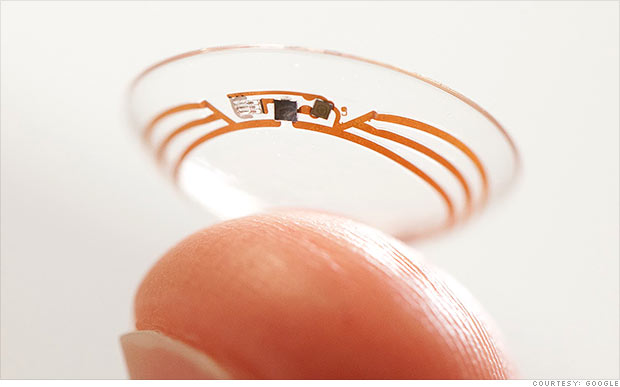
Google Smart Contacts May Help Monitor Blood Sugar in the Future


Google is rapidly developing new wearable technologies. Google's first attempt at wearable technology, Google Glass, has attracted a lot of press attention, but is still not available on the mass market. They also cost $1,500. Google's next foray into wearable technology maybe less flashy and less expensive, but may have a greater assistive technology impact.

Google's smart contact will sit on the eye like conventional contacts, but do much more. Google's initial idea is to measure blood sugar in tears for diabetics with electronics integrated into the contact. Instead of drawing blood to monitor blood sugar Google's smart contact would analyze blood sugar within tears. This system would eliminate or reduce painful finger pricks and also allow for more frequent testing. A small LED light inside the contact would then illuminate different colors depending on the blood sugar reading.

While this technology is still in development the idea is very exciting. If smart contacts could benefit diabetics maybe Google can adapt them to benefit people with other disabilities or conditions. Could a contact detect sound and give a visual notification to a deaf user? Imagine this, a smart contact for the deaf senses volume of sound and direction and notifies the user. A loud sound off towards a user's right side would illuminate the right LED very brightly while a soft sound off towards a user's left would dimly illuminate the left LED. While Google has only confirmed smart contacts are in testing for blood sugar testing it is exciting to think about the possibilities five or ten years down the line. Hopefully smart contacts for blood sugar monitoring will reach the market sooner than later and will assist people with diabetes.

Click read more to view a short video about Google smart contacts.


How To Use
  • Put the link on the
  • Generate Link box with http:// or https://
  • Use  CTRL + V  on keyboard to put the link.
  • Click Generate button to get encrypted link.
  • Click Copy URL button.
  • Done