MegaRid: VoiceOver
News Update
Loading...
Tampilkan postingan dengan label VoiceOver. Tampilkan semua postingan

Jumat, 03 Juli 2015

Bright Future for Apple Accessibility with Lisa P. Jackson in the Lead

Headshot of Jackson wearing red shirt

Apple recently updated the bio of Lisa P. Jackson to reflect her new role overseeing accessibility at Apple. This expands her previous responsibilities of overseeing environmental initiatives at Apple. Ms. Jackson's official title is now Vice President of Environment, Policy and Social Initiatives. Apple CEO Tim Cook has been vocal regarding his views of the importance of accessibility. This new management change, which puts a Vice President level executive in charge of accessibility for the first time, seemingly reaffirms Apple's long-standing commitment to accessibility.

Apple has been a leader in accessibility. Its products include superior accessibility features out of the box. Features such as VoiceOver, Speak Selection, Zoom, AssistiveTouch, and Switch Control give people with disabilities equal access to Apple products at no additional charge. From personal experience I can say that these features are truly life changing and positively impact many people.

Even considering Apple's past success there are areas for possible improvement. One example involves training sales people about the accessibility features. On recent trips to Apple Stores, I have had some experiences that are not consistent with Apple's commitment to accessibility. For example, the Apple Watch on display had its accessibility features disabled. While Apple likely wants to limit confusion for customers who do not use accessibility features, this does not promote equal access. Part of the magic of the Apple Store is being able to walk up to a shinny new product and try it out. With the accessibility features disabled, and the sales people unfamiliar with how to enable these features, users with disabilities don't have an opportunity to fully explore the product. Apple should be showing off these features, not hiding them. Apple would be doing a great service to its customers with disabilities to prepare its store employees to talk about accessibility features as well as they talk about other features.

Ms. Jackson has proven herself to be a very capable leader.  She has the ability to continue Apple's accessibility superiority and solve existing challenges. Her work on environmental initiatives has been very successful, propelling Apple towards the top of the technology industry in terms of sustainability. The future of Apple product accessibility seems bright, and I am excited to see what innovations come next.

To read Lisa Jackson's full bio from Apple click here. Photo credit: Apple.

Kamis, 29 Januari 2015

Voice Dream Writer: Word Processing Plus a Whole Lot More


Voice Dream has become a well-known name in the assistive technology community because of Voice Dream Reader: a text-to-speech reader available for iOS devices. Now the developer has released a new app called Voice Dream Writer which aims to support writers with special needs. Voice Dream Writer has features that can benefit people with a wide range of needs including people with dyslexia and people who are blind or visually impaired. People without disabilities can also benefit from the app. For example, english language learners could benefit from spoken feedback and other features offered by Voice Dream Writer. 

The text-to-speech feedback is designed to help writers find mistakes in their writing. The style of text-to-speech reading can even be changed to help writers focus either on spelling and grammar, or on content and organization. The app also offers easy access to an outline view that can help with organizing a document. Other features allow users to look up words phonetically or look up words by its meaning. 

The text-to-speech feedback can be accessed as users type so they can verify that a word or sentence was entered as they intended. This helps writers identify words or phrases that looked correct, but upon hearing them read aloud sound incorrect. The app will also read back text that has been dictated to help users insure that their voice was transcribed correctly.

When it is time to review a document, Voice Dream Writer includes some very thoughtful features for editing. The app includes two customizable proof reading modes that use text-to-speech to help with the editing process. The first is designed to help writers edit the content of their document. In this mode words are read back using text-to-speech sound natural and smooth: as they would when reading a book with Voice Dream Reader. This allows writers to focus on the content and organization of their document. 

The second mode reads text back in a somewhat choppy manner which allows users to focus their document at the micro level. This mode is ideal for editing spelling a grammar because the lack of flow with the text-to-speech voice makes it easier to focus on each word rather than the overall content of the text.

Each proofreading mode is customizable with options to announce misspelled words, spell homophones, and speak punctuation and capitalization.

Similar to Voice Dream Reader, Voice Dream Writer includes the ability to change the visual style of the app. Font size, character and line spacing, margins, text color, and background color can all be changed. Additionally, users can change the text to speech voice and speaking rate to match their preferences. Text-to-speech voices purchased in Voice Dream Reader are available in the Writer without an additional purchase. The pronunciation dictionary also syncs between the Writer and the Reader if both are installed on the same device.

Text files can be imported from iCloud Drive or supported third party services such as Google Drive or Dropbox. Unfortunately, users can only import text files and not Microsoft Word files. Documents can be exported as HTML, RTF, Microsoft Word, or Apple Pages format.

Click read more below to continue to read the review of Voice Dream Writer. Some of the most innovative and helpful features will be described below.

Some of Voice Dream Writers most helpful features can be found in the right sidebar menu. First is a dictionary which can read back the definitions of a word (This feature is currently not available in Voice Dream Reader without using VoiceOver). The second tool allows users to enter a word spelled phonetically to find the correctly spelled option.  For example, if I typed "receat," it   might suggest the word "receipt," as an option. Unlike some other apps, these suggestions are not made based on the context of the surrounding text. Users can tap on each suggestion to hear the word spoken aloud. This feature is extremely helpful for poor spellers, especially when they are in a situation where using dictation would be inappropriate or unavailable. 

The last feature on the right sidebar is the option to look up a word by meaning. For example, if I was writing about organizations which donate money to charities, but could not think of the word "philanthropic" I could search "donate money" and "philanthropic" would be one of the suggestions. This can help reduce instances of a word being at the tip of your tong, but you can quite think of the word.

In the left sidebar menu is an outline view. Users can select to view an outline of their document by heading, paragraph, or sentence. Users can then simply rearrange paragraphs or headings by dragging and dropping. This is helpful for the planning stages of writing as users can plan different paragraphs and fill in the content after they are finished planning.

All formatting in Voice Dream Writer is done using markdown. This means that all editing is done in plain text, but symbols inserted before or after words cause the words to be formatted when the file is exported. For example, adding a # or * before a word will cause that word to be formatted as a heading or as italic font when exported. This system has some positives and some negatives over conventional formatting that is found in Microsoft Word and Apple's Pages. 

For blind users this system can be helpful because the special characters such as # and * will be spoken allowing them to quickly recognize when a portion of text is bold or italics. In other word processors italics and bold text may be read normally making it more difficult for blind users to determine how the document is formatted. However, for sighted users this system may be unfamiliar and therefore more difficult. It would be nice if Voice Dream Writer had both the option of using markdown and for editing in rich text and allowed the users to decide which option worked best for their needs.

Finally, Voice Dream Writer includes a new innovation which improves the text selection and cursor movement process for VoiceOver users. These tasks are normally difficult for VoiceOver users. VoiceOver is a built in screen reader available on iOS devices that allows blind and visually impaired users to use gestures in order to use their device. When VoiceOver is enabled, Voice Dream Writer automatically adds three buttons to the bottom left of the screen. The first button controls the cursor and accepts a combination of multi-figure taps and swipes to move the cursor forward and backwards through the document. The second button adjusts how much the cursor moves with each swipe of the first button. This button allows the cursor to move letter-by-letter, word-by-word, sentence-by-sentence or paragraph-by-paragraph. The third button allows users to easily select text and then copy or cut that text. This system of selecting text and moving the cursor with VoiceOver is much faster than the method used in other apps and is a major benefit of Voice Dream Writer for VoiceOver users.

Voice Dream Writer is available for all iOS devices running iOS 8 and higher. While iPhone support is certainly convenient when writing a quick email, the iPad's large screen seems best suited for longer writing. Users who want to use the app for writing long pieces will probably wish to use a Bluetooth keyboard for faster typing. People using Bluetooth keyboards will also enjoy the ability to use keyboard shortcuts with the app. More keyboard shortcuts will be added in future versions as well. For example, in the future users with Bluetooth keyboards will be able to enter a key combination to quickly find all misspelled words.

In all Voice Dream Writer has many superb features that can help writers with a wide variety of needs. Hopefully rich text editing and the ability to import Word documents will be added in a future version. Voice Dream Writer seems like it would also make a great Mac app and hopefully someday people will be able to use these features on their Macs. Even without rich text editing and Mac support, Voice Dream Writer seems amazingly polished and well thought through for a version 1.0 app. To purchase Voice Dream Writer for $10 on the App Store click here. The app will be on sale for $8 until Sunday, February 1, 2015.

If you’re still unsure about the apps features watch the video below in which Winston Chen, the developer of Voice Dream Reader and Voice Dream Writer, walks viewers through his latest app.


Senin, 29 Desember 2014

Apple's New App Return Policy in Europe is a Big Deal for VoiceOver Users


Recently, Apple implemented a new 14 day no questions asked return policy in many European Union (EU) nations according to 9to5mac. The new policy allows customers to receive a full refund on App Store purchases within 14 days of receipt.

While this new policy is an important safeguard for all consumers, it is a major development for App Store customers who rely on accessibility features, such as VoiceOver, in order to use their devices. VoiceOver is a built in screen reader that allows blind and visually impaired users to use iOS devices and Macs.

While browsing the App Store, it is extremely difficult for VoiceOver users to determine if the app they are interested in purchasing is accessible. This often leaves the customer playing a guessing game with their money. For example, without the return policy a VoiceOver user who wanted to purchase a $20 app would need to hope that the app was accessible with VoiceOver otherwise their $20 purchase would be useless. Even if the app is inaccessible and unusable refunds are typically not granted.

The new policy allows VoiceOver users to download apps that may or may not be accessible without the risk of wasting money on an app that is totally useless for them. If the user downloads an app that is not accessible, they can simply return the app within two weeks and receive a full refund. In effect, this allows for a two week trial period for apps which will allow users to see if the app fits their needs. For VoiceOver users within the EU this will take the guesswork out of purchasing apps.

Unfortunately, the new return policy is only available in certain EU countries and is not applicable to customers in other countries. Hopefully, Apple will extend the policy to all customers regardless of which country they are in. Until that time, users in other countries will have to hope that the apps they are downloading are accessible.

Minggu, 28 Desember 2014

KNFB Reader App: Amazingly Fast and Accurate


The KNFB Reader is a text recognition app that is shockingly fast. Take a picture of a newspaper article or practically any printed text and within a couple of seconds the app will be reading the text back to you. A "couple of seconds" is no exaggeration, the KNFB Reader app is that fast. For people who are visually impaired or have difficulty reading, the KNFB Reader is perfect for accessing printed text.

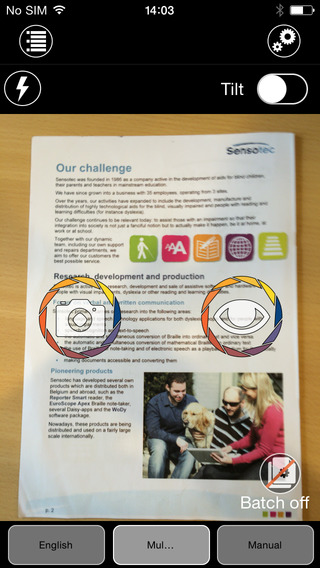
Once a document is properly framed, only one more step is necessary to start reading the document. Simply press the take picture button and within seconds the app will recognize the text within the document using optical character recognition (OCR) and begin reading it with text-to-speech. No need to crop or adjust the image, once the picture is taken the app does all the work. All recognition is done locally on the device so personal data is never transmitted over the internet.

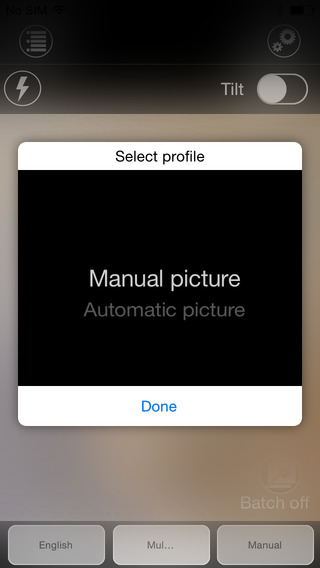
The KNFB Reader app has a number of features that help users capture images of text. For users who are blind and visually impaired the app offers a "field of view report" which offers spoken feedback to help frame the document in the view finder. This feature will let a users know how many corners of the document are within the field of view and if the document is tilted. In addition, the app offers automatic picture taking mode which will automatically snap a picture of a document when it is properly framed.  The app also includes the ability to capture multi-page documents with batch mode. The field of view feature worked well with loose paper documents, but I did not have success using the automatic capture feature with books.

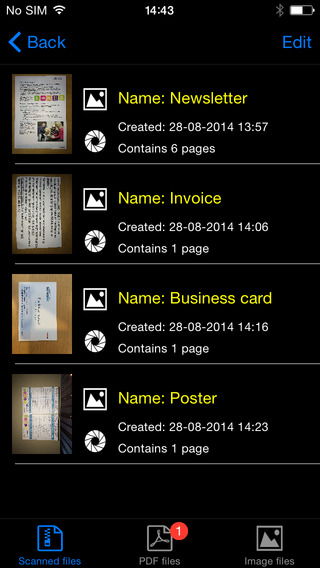
In addition to using the device's built in camera to capture images, users can also import image based PDF documents and JPG files to be recognized with the app. For example, using the "open in" feature of Google Drive will allow a user to import an image to be recognized and read with KNFB Reader.

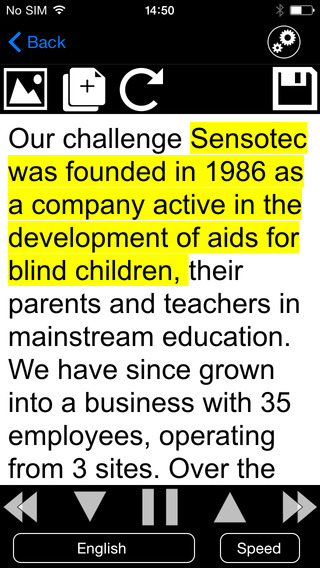
Text is can be highlighted word-by-word or line-by-line as it is being read aloud by the text-to-speech voice. Users can adjust the layout and appearance of the text and change the speaking rate of the text-to-speech voice. Only the default iOS text-to-speech voice is available, so users hoping to use another voice will have to export the text to another app. The built-in text reader also lacks the ability to highlight or annotate the document, so once again users looking for this functionality will need to export the text to a different app.

While the KNFB Reader app is faster and more accurate than competing products such as Prizmo, Prizmo does include some useful features that KNFB Reader does not. Prizmo, which is significantly less expensive, includes the ability to export PDF documents. This means a user can take a picture of a document, have the text recognized and any images on the page retained by Prizmo, so that it looks identical to the printed page. KNFB reader, by contrast strips away images, and only retains the printed text. If PDF export is an important feature to you, Prizmo may be a better option. Click here to learn more about Prizmo. 

If you are looking for a text recognition app with great speed and accuracy, I think you will be quite pleased. If The KNFB reader fits your budget, you won't be disappointed. KNFB Reader costs $100, to download the app from the App Store click here. It is compatible with the iPhone 4S and newer and the iPod touch fifth generation. Click read more below to view screen shots of the app.


Kamis, 18 September 2014

New in iOS 8: Built-in Braille Keyboard for Six-Dot Input


iOS 8 includes enhancements to VoiceOver, the built-in gesture based screen reader for people with visual impairments. One of the improvements is a new built-in Braille Keyboard for Six-Dot input. The new feature is similar to the BrailleTouch app released a few years ago with one major difference; the built-in option can be used to enter text into any app directly. The option can be enabled in the VoiceOver rotor. The Braille keyboard will offer VoiceOver users who are familiar with Braille an alternative, and possibly much faster text entry method. iOS 8 will also offers third-party keyboards such as Fleksy which could also offer significantly faster text input for VoiceOver users.

Once you turn the Braille keyboard on six positions will appear on screen representing the six Braille dots. When the device is held with the screen perpendicular to the floor it automatically enters screen away mode. When using this mode the user faces the screen away allowing three fingers from each hand to contact the screen. As the user begins to type the six virtual dots automatically reposition themselves to compensate for changes in your grip. The dots can also be recalibrated by holding down the three right hand fingers and then the three left hand fingers immediately after. This positions the dots directly under your fingers.

When the device is set on the table or another flat surface the Braille keyboard enters tabletop mode. This mode would seem to be ideal for an iPad can can also be used on smaller devices. It does take some care to ensure that the keyboard does not switch between tabletop and screen away mode accidentally. In both modes typing did seem difficult on the small screen, but some practice seemed to improve typing speed. This new option allows typing with contracted or uncontracted Braille. When typing a swipe right adds a space and a swipe left deletes the last character typed. This new method of typing is very sensitive a will likely require practice before mastering. If you use this feature frequently, it maybe helpful to purchase a case that boarders the screen to avoid trying to type on the bezel.

To enable the Braille keyboard go to Settings > General > Accessibility > VoiceOver > Rotor > Braille Screen Input. Then, when VoiceOver is enabled, rotate the rotor until Braille screen input is selected. It exciting to see all the new third-party keyboard options for iOS 8, but for VoiceOver users, Apple's own Braille keyboard maybe the most exciting of all.

Rabu, 17 September 2014

Apple Releases iOS 8 with Major Accessibility Improvements

Apple Releases iOS 8 with Major Accessibility Improvements


Today, Apple released iOS 8 the latest software update for iPhone, iPad, and iPod Touch. The new software, which is available for free, includes many new features and enhancements, including new accessibility features and tools that will allow developers to make the next generation of apps. Apple has not stood still in terms accessibility and as a result, iOS 8 is truly the most accessible and inclusive iOS version to date.

Some of the most exciting new accessibility features are included in iOS are ready to use right after updating. These features are developed by Apple, and most are found under Settings > General > Accessibility.

Speak Screen is one of the new accessibility features that allows users to quickly and easily have content on the screen read with text-to-speech with a simple two finger swipe down gesture. Unlike older versions of iOS which required users to highlight sections that they wished to be spoken, Speak Screen does not require any highlighting. Users can even ask Siri to “speak the screen” to start text-to-speech.

Apple’s highly acclaimed screen reader, VoiceOver, also received some substantial updates. Now, VoiceOver users can enter text using a system-wide virtual six-dot Braille keyboard. Zoom is also vastly improved with windowed magnification and filters. Guided Access and AssistiveTouch have seen smaller improvements.

In addition, all accessibility features that use speech will now be able to use the Alex text-to-speech voice that many Mac users enjoy. All of these features are included with the iOS 8 update. Stay tuned for in depth information about the features discussed above in the coming days and weeks.

With iOS 8, Apple has given developers tools to make the next generation of great apps. Hopefully, assistive app makers will be able to take advantage of these new features to help people with various needs. Developers can now make system wide keyboard apps. iOS keyboards will now be able to enter text into any app if the developer updates the app for iOS 8. For example, Fleksy and SwiftKey are expect to receive an update shortly to enable text entry into any app. Developers can also add the ability to unlock their app using Touch IDfinger print recognition for devices with Touch ID. Lastly, developers can create extensions to allow their app to perform functions within other apps. For example, a translation extension could be used within Safari to eliminate the need to switch apps.

These features open up a whole new world to app developers and it will be exciting to use some of the new apps that take advantage of these new developer features. While some apps have already been updated to take advantage of the new developer features in iOS, many have not been. Check back to read about some apps that are taking advantage of these new developer features in ways that can help people with disabilities.

iOS 8 is a free update that you can download now. Stay tuned to the Assistive Technology Blog to learn more about the new included accessibility features and about apps that take advantage of the new developer features.

Kamis, 10 Juli 2014

How Apple Could Improve the App Store for VoiceOver Users

Potential  Feature for App Store
Would you buy a song that may or may not play, a car that may or may not fit in your garage, or a remote that could or could not work with your TV? Probably not, but a similar problem is facing VoiceOver users (and users of other built-in accessibility features) every time they look for a new app on the App Store. This user base is growing quickly due to high quality accessibility features that Apple builds into every iOS device. Currently, the App Store offers no way for users to know if the app will be accessible before hitting the buy button. For VoiceOver users, this means throwing away money if the app turns out to be inaccessible. While the issue of app accessibility has been getting a lot of buzz lately, hopefully Apple can implement some solutions to the problem before and until app accessibility is virtually ubiquitous.

One way to help users know if an app is accessible before hitting the buy button is to add an accessibility report to the apps App Store page. Just as App Store pages prominently displays if an app is compatible with Game Center. This report could be generated during Apple's app review process and consist of a simple rating scale to help users determine if the app is accessible for their needs. As Rene Ritchie of iMore.com suggested, maybe Apple would decide not to recommend any apps that are not fully accessible.

There are other solutions such as allowing developers to create an app accessibility preview alongside the full blown app previews coming with iOS 8. Developers could walk users through how the app interacts with VoiceOver or other accessibility features directly in the App Store using audio and video.

Hopefully Apple and app developers continue to keep in mind when updating their products.
How To Use
  • Put the link on the
  • Generate Link box with http:// or https://
  • Use  CTRL + V  on keyboard to put the link.
  • Click Generate button to get encrypted link.
  • Click Copy URL button.
  • Done